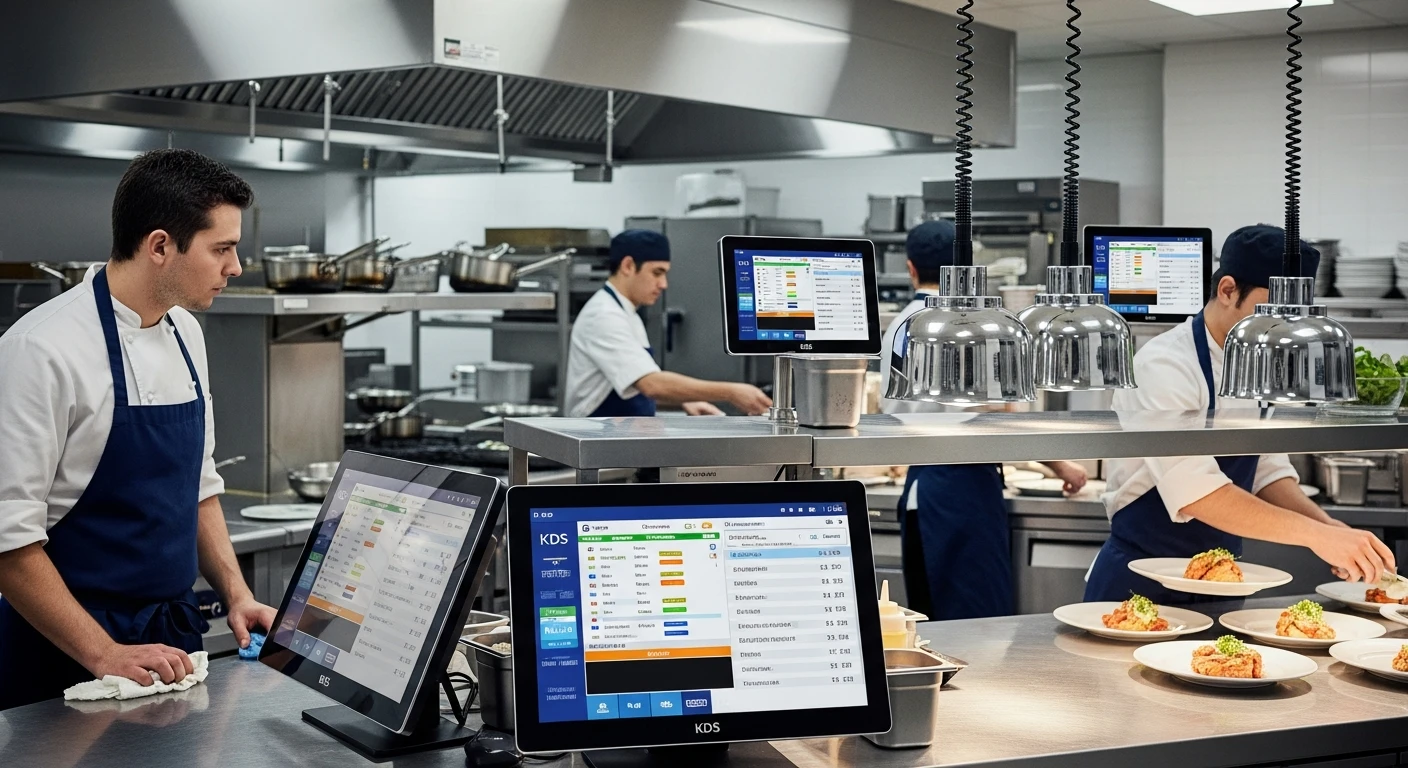
If your restaurant kitchen still relies on paper tickets printed from a receipt printer, you are working with a system designed decades ago. Paper tickets get lost, smudged, and misread. They pile up during rush hours. They cannot tell you how long an order has been waiting or which station is falling behind. A kitchen display system, or KDS, replaces paper tickets with a digital screen that organizes, routes, and tracks every order in real time.
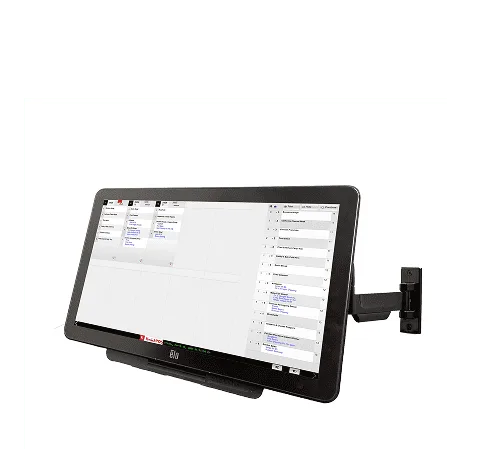
KwickOS Kitchen Display System — replace paper tickets with digital order management
For restaurants doing any meaningful volume, particularly those with online ordering, delivery, and dine-in running simultaneously, a KDS is no longer a luxury. It is essential infrastructure. This guide covers what a KDS does, how it compares to paper tickets, the features that matter most, and how to evaluate systems for your restaurant.
What Is a Kitchen Display System?
A kitchen display system is a screen (or set of screens) mounted in the kitchen that receives orders directly from your POS system and displays them to kitchen staff in real time. When a server enters an order on the POS terminal or a customer places an order online, the order appears on the KDS screen instantly, organized by station, priority, or time.
Kitchen staff interact with the KDS by tapping the screen (or using a bump bar) to acknowledge items, mark them in progress, and clear them when complete. The system tracks timing for every order and can alert staff when an order is approaching or exceeding target preparation times.
Modern KDS systems do far more than display orders. They route different items to different stations (grill, fryer, salad, bar), coordinate timing across stations so all items for a table are ready simultaneously, and provide management with data on kitchen performance, ticket times, and throughput.
KDS vs. Paper Tickets: A Direct Comparison
| Factor | Paper Tickets | Kitchen Display System |
|---|---|---|
| Order clarity | Small print, often smudged or hard to read in a hot kitchen | Large, color-coded text; customizable font sizes and formatting |
| Order routing | Expo or chef manually sorts and distributes tickets | Automatic routing to correct station based on item category |
| Modifications & special requests | Easy to miss a small modification note on a printed ticket | Modifications highlighted in bold, color, or separate line items |
| Order timing | No tracking; rely on memory and visual ticket pile | Real-time timer on every order; color changes at warning thresholds |
| Lost orders | Tickets fall on the floor, get wet, or blow away near vents | Digital orders cannot be physically lost |
| Multi-channel orders | Separate printers or manual entry for online, delivery, dine-in | All channels display on one screen with order-type labels |
| Ongoing cost | Thermal paper rolls ($200-500/year for a busy restaurant) | No consumable cost after initial setup |
| Performance data | None; anecdotal only | Detailed reports on ticket times, station throughput, peak periods |
Restaurants that switch from paper tickets to a KDS typically report a 15-25% reduction in average ticket times within the first month, driven primarily by fewer lost orders, better station routing, and the visibility of timing data that motivates kitchen staff.
Key Features to Look for in a KDS
Not all kitchen display systems are created equal. When evaluating options, prioritize the following features based on your restaurant's needs.
1. Station-Based Order Routing
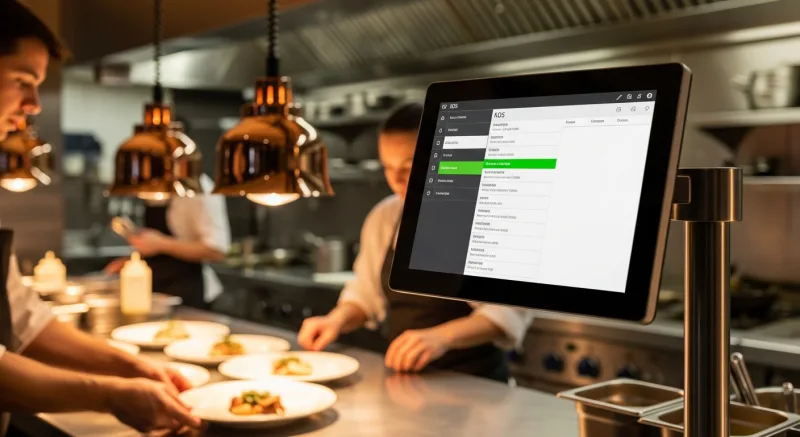
If your kitchen has multiple stations (grill, saute, fry, cold, dessert, bar), your KDS should automatically route each item to the correct station's screen. A burger goes to the grill screen while a salad goes to the cold station screen, even if they are on the same ticket. This eliminates the expo's job of manually splitting orders and lets each station focus on their items.
2. Multi-Channel Order Consolidation
Modern restaurants receive orders from dine-in POS terminals, online ordering websites, delivery platforms (DoorDash, Uber Eats, Grubhub), phone orders, and self-service kiosks. A good KDS consolidates all of these onto one display, clearly labeled by channel. Without this, your kitchen needs separate tablets for each delivery platform plus the ticket printer, creating chaos during busy periods.
3. Order Timing and Alerts
Look for a KDS that displays a running timer on each order and changes the order's color as it ages. A common scheme: green for the first five minutes, yellow from five to eight minutes, red after eight minutes. This gives kitchen staff an instant visual sense of what needs attention without reading individual times. Management can configure these thresholds based on their restaurant's standards.
4. Course and Timing Coordination
For full-service restaurants, the KDS should support course-based firing. Appetizers fire immediately, while entrees are held until the server signals the kitchen (or until a configured time delay). Some systems also coordinate across stations, ensuring that a steak from the grill and a side from the saute station are both ready at the same time for a given table.
5. Recall and Reprint Capability
Mistakes happen. The KDS should allow staff to recall a bumped order if they realize they missed an item, and management should be able to view a full history of completed orders for dispute resolution or quality checks.
6. Integration with POS and Online Ordering
A KDS is only useful if it connects seamlessly with your POS system. Some KDS products are built directly into an integrated restaurant platform, while others are standalone products that connect via API. Integrated systems are simpler to set up and maintain because there is no middleware or third-party integration to manage.
KwickOS, for example, includes a built-in KDS as part of its all-in-one restaurant operating system. Orders from KwickPOS terminals, online ordering, and third-party delivery platforms all flow into the same KDS automatically, with unified routing, timing, and reporting. There is no separate KDS software to purchase, configure, or maintain.
7. Offline Functionality
If your internet connection drops, your KDS should continue working. Look for systems that operate on a local network between POS and KDS devices, rather than requiring a cloud connection for every order. A kitchen that goes dark because the WiFi blipped during dinner rush is an unacceptable risk.
Hardware Considerations
The hardware running your KDS matters as much as the software, because kitchen environments are harsh on electronics.
Display Size and Mounting
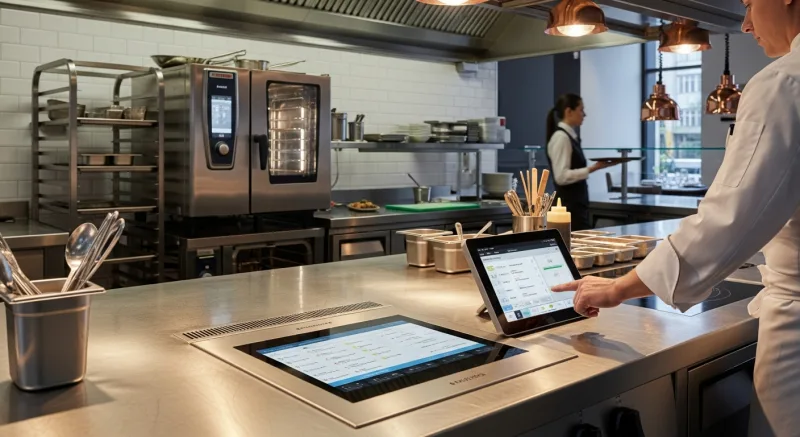
Most restaurants use screens between 19 and 24 inches for KDS. Larger screens (32 inches or more) are useful in high-volume kitchens where staff view the display from a distance. Mount screens at eye level for the primary user of each station, angled slightly downward if mounted above the pass.
Durability
Kitchen environments involve heat, steam, grease, and water. Consumer-grade tablets and monitors may work short-term but tend to fail in these conditions. Look for commercial-grade displays rated for restaurant use, with sealed bezels, tempered glass, and heat tolerance up to at least 95 degrees Fahrenheit. Some restaurants use consumer iPads in ruggedized cases with screen protectors; this works but expect to replace the iPad every 18-24 months in a busy kitchen.
Touch Screen vs. Bump Bar
Touch screens allow staff to interact directly with orders on screen. Bump bars are physical button strips mounted below the screen. Touch screens are more intuitive and flexible but can be difficult to use with wet or greasy hands. Bump bars are more durable and easier to use in messy conditions. Some KDS systems support both, letting you choose per station.
Sound Alerts
A good KDS will emit an audible alert when a new order arrives, so kitchen staff do not need to constantly watch the screen. Different sounds for different order types (dine-in vs. delivery) help the kitchen prioritize without looking up.
Setting Up Your KDS: A Step-by-Step Approach
- Map your kitchen workflow: Before installing anything, document how orders currently flow through your kitchen. Which stations handle which items? How does the expo coordinate? Where are the bottlenecks?
- Define your stations: Based on your workflow, decide how many KDS screens you need and where each one goes. A typical setup might include: one screen for the hot line, one for the cold station, one for the bar, and one at the expo/pass.
- Configure routing rules: In your KDS software, map each menu item category to the correct station. Test thoroughly with real orders before going live.
- Set timing thresholds: Define your target ticket times and configure color-coded alerts. Be realistic; start with your current average times and tighten them gradually.
- Train your team: Spend at least one full shift running the KDS alongside paper tickets so staff can learn the new system without risk. Then cut over completely. Running both systems permanently creates confusion.
- Monitor and optimize: After the first week, review the KDS performance data. Identify stations with consistently high ticket times and investigate whether the issue is staffing, menu complexity, or equipment.
KDS Built into Your Restaurant OS
KwickOS includes an integrated kitchen display system that works seamlessly with POS, online ordering, and delivery platforms. No extra software to buy or configure.
Explore KwickOS for RestaurantsHow a KDS Improves Your Bottom Line
The financial case for a KDS goes beyond eliminating paper costs:
- Faster table turns: Reducing average ticket times by even two minutes can add one or more additional table turns per shift during peak hours. For a 60-seat restaurant, that could mean 10-20 additional covers per night.
- Fewer comps and remakes: Order errors are the leading cause of food waste and complimentary meals in most restaurants. A KDS with clear modification displays and station routing dramatically reduces errors.
- Better labor deployment: Performance data from the KDS tells you exactly which stations are over- or under-staffed during different day-parts. This allows you to adjust scheduling with data rather than guesswork.
- Delivery platform compliance: DoorDash, Uber Eats, and others penalize restaurants with slow preparation times by lowering their search ranking. A KDS with delivery order prioritization helps you hit platform targets and maintain visibility.
- Reduced training time: New kitchen staff can read a KDS screen immediately. The learning curve is far shorter than understanding a restaurant's paper ticket conventions, abbreviations, and routing norms.
KDS Pricing: What to Expect
KDS costs vary widely depending on whether you buy standalone hardware and software or use an integrated system:
| Component | Typical Cost Range |
|---|---|
| Commercial KDS display (per screen) | $400 - $1,200 |
| Consumer tablet alternative (per screen) | $200 - $500 |
| Bump bar (per station) | $80 - $200 |
| Standalone KDS software (monthly) | $20 - $60 per screen |
| Integrated KDS (within a platform like KwickOS) | Often included in the platform subscription |
| Mounting hardware and cabling | $50 - $150 per screen |
For a three-screen KDS setup using an integrated platform, total first-year cost typically falls between $1,000 and $3,000 including hardware. Compared to the cost of one busy Saturday night of lost tickets, wrong orders, and slow ticket times, the payback period is measured in weeks, not months.
Common KDS Mistakes to Avoid
- Too many items per screen: If a single screen shows orders for all stations, it becomes overwhelming. Use station routing to limit each screen to the items relevant to that area of the kitchen.
- Ignoring the expo position: The expo screen is as important as the station screens. The expo needs a view of all active orders across all stations to coordinate plating and delivery.
- Skipping training: Kitchen staff who are not properly trained on the KDS will revert to old habits or ignore the screen entirely. Invest in hands-on training time before going live.
- Not using the data: A KDS generates valuable operational data, but it only helps if management reviews it regularly. Schedule a weekly review of ticket times, error rates, and station performance to drive continuous improvement.
Conclusion
A kitchen display system is one of the highest-ROI technology investments a restaurant can make. It eliminates lost tickets, reduces preparation errors, speeds up service, and gives management the data they need to optimize kitchen operations. For restaurants managing dine-in, online ordering, and delivery simultaneously, a KDS is not optional; it is the backbone of an efficient kitchen.
When evaluating KDS options, prioritize integration with your POS and ordering systems, station-based routing, reliable timing alerts, and commercial-grade hardware. And if you want the simplest path to a fully integrated kitchen, consider a platform like KwickOS that includes the KDS alongside POS, online ordering, and delivery management in one unified system.