 Ming Ye
Watch your dining room during a Friday night rush. A server takes an order at table 12, walks to the POS station, waits behind two other servers, keys in the order, walks back to check on table 14, realizes table 12 wanted to add a side of truffle fries, walks back to the POS station, waits again, adds the modifier, walks back.
That single appetizer add-on just consumed 3 minutes of your server's time and delayed the order hitting the kitchen by 4 minutes.
Now multiply that across 6 tables, 200 covers, every shift, every night.
Here's the thing: the POS terminal across the room isn't just slowing down service — it's costing you $12 per table in lost upsells, forgotten add-ons, and orders that guests talk themselves out of during the wait.
Restaurants that put tablets directly in servers' hands see average check sizes jump by $10 to $14 per table. Not because the food changed. Not because the menu changed. Because the friction between "I'll have the lobster bisque too" and that order reaching the kitchen dropped from 4 minutes to 4 seconds.
This guide covers everything you need to deploy tableside tablet ordering: which hardware to buy, how to configure your POS for tableside use, the real ROI math, and — most importantly — how to train your staff so they actually use the tablets instead of letting them collect dust in a charging station.
Why Tableside Ordering Works: The Psychology of Instant Commitment
The reason tableside tablets increase check sizes isn't technology. It's psychology.
When a guest says "I'll also have the crab cakes," there's a 4-second window where that decision is firm. If the server says "great choice" and taps it into the tablet right there, the order is locked. But if the server says "got it" and walks away to key it in at the terminal, 23% of add-on items get reconsidered and removed before the order is placed.
Guests second-guess themselves. "Actually, we don't need the crab cakes." "Skip the extra side." "Just water is fine." Every step between the table and the terminal is a chance for your revenue to evaporate.
But it gets worse: the problem compounds at scale.
A server carrying a tablet can show photos of specials. Not describe them — show them. Restaurants using photo-enabled tableside menus report that appetizer orders increase by 30% and dessert orders increase by 22%. A verbal description of crème brûlée is forgettable. A high-resolution photo of caramelized custard with a torched sugar crust? That sells itself.
And the modifier prompts are automatic. The tablet doesn't forget to ask "would you like to add bacon?" or "upgrade to sweet potato fries for $1.50?" Your best server remembers those upsells 80% of the time. Your newest server remembers them 30% of the time. The tablet remembers them 100% of the time.
The Real ROI Math: How Fast Tablets Pay for Themselves
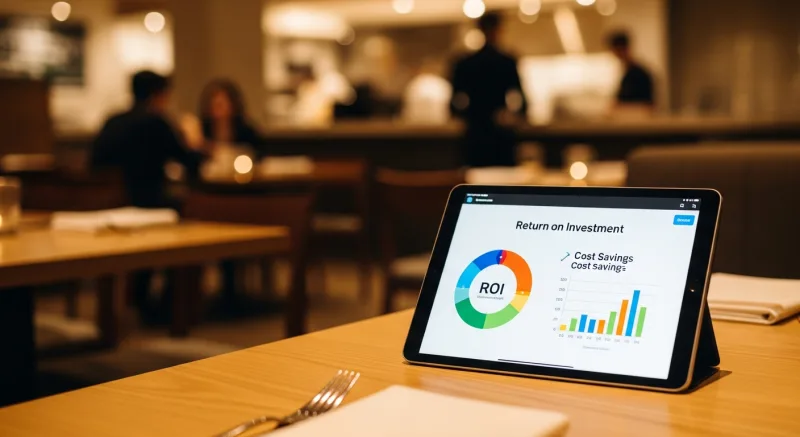
Let's stop talking in percentages and start talking in dollars. Here's the actual math for a 120-seat restaurant running two turns on a typical evening.
| Metric | Before Tablets | With Tablets | Difference |
|---|---|---|---|
| Average check size | $47 | $59 | +$12 |
| Tables per server per shift | 5 | 6-7 | +1-2 |
| Order errors per shift | 4-6 | 0-1 | -80% |
| Average table turn time | 62 min | 52 min | -10 min |
| Nightly covers (120 seats) | 232 | 276 | +44 |
| Nightly revenue | $10,904 | $16,284 | +$5,380 |
The hardware investment? For 6 tablets with protective cases, a charging station, and initial setup: $1,800 to $3,000. At even a conservative $2,000/night revenue increase, the tablets pay for themselves in under two weeks.
And that's not all: the hidden savings go beyond upsells.
Order errors are the silent budget killer in full-service restaurants. Every wrong dish that goes back costs you the food ($8-$15), the labor to remake it ($3-$5), and often a comped item to keep the guest happy ($12-$20). That's $23 to $40 per error. If tablets reduce your errors from 5 per shift to 1 per shift, you save $92 to $160 every single night in error-related costs alone.
Choosing the Right Tablet Hardware
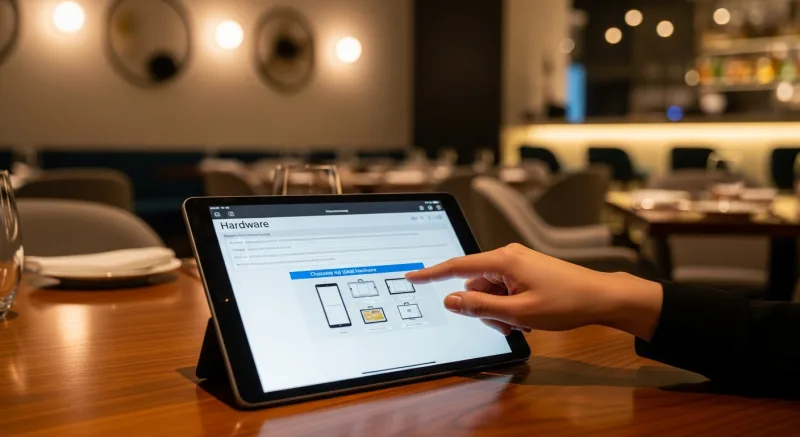
Not every tablet belongs in a restaurant. Your servers need a device that survives grease, drops, 10-hour shifts, and the occasional encounter with a toddler's sippy cup. Here's what to look for.
Screen Size: The 8-Inch Sweet Spot
Too small (7 inches) and servers squint at modifier lists. Too large (10+ inches) and the tablet becomes awkward to carry while clearing plates. 8-inch tablets hit the sweet spot — large enough to display photos and modifier prompts clearly, small enough to tuck under an arm or slip into an apron pocket with the right case.
Hardware Recommendations by Budget
| Tier | Device | Price/Unit | Battery | Best For |
|---|---|---|---|---|
| Budget | Samsung Galaxy Tab A8 | $180-$230 | 10 hrs | Casual dining, testing phase |
| Mid-Range | iPad 10th Gen | $330-$380 | 10 hrs | Full-service, high volume |
| Premium | iPad Mini (6th Gen) | $430-$500 | 10 hrs | Fine dining, compact form |
Here's the thing: the tablet itself is only half the equation. You need a case that can survive a 4-foot drop onto tile, a hand strap so servers can carry food and tablet simultaneously, and ideally a built-in card reader slot for payment at the table.
Budget $50-$80 per case. The cheap $15 Amazon cases crack within a month in a restaurant environment. This is not the place to cut corners.
Network Requirements
Tableside tablets are only useful if they connect reliably. A single dropped connection during a rush and your servers are back to writing orders on notepads.
You need dedicated restaurant-grade Wi-Fi — not the same network your guests use. A separate VLAN for POS devices with at least 50 Mbps dedicated bandwidth. If your restaurant is over 3,000 square feet, you need at least two access points to eliminate dead zones near back booths and patio areas.
But it gets worse: standard cloud-only POS systems add another failure point. If your internet drops for even 30 seconds, every tablet in the restaurant goes dark. This is why hybrid local+cloud architecture matters. KwickOS processes orders locally with 1ms latency — the tablet talks directly to the kitchen display system on your local network. Internet drops? Orders still fire. Credit cards still process. Your servers don't even notice.
POS Configuration for Tableside Success
Having the hardware is step one. Configuring your POS to maximize tableside ordering is where the real revenue gains happen.
Menu Sync: One Change, Every Tablet
The nightmare scenario: you 86 the salmon special, update the main terminal, but three servers are still selling salmon from their tablets because the menu didn't sync. Guest orders salmon. Kitchen can't make it. Server walks back to table with bad news. Guest is irritated. You comp a dessert.
Your POS needs real-time menu sync — when a manager 86's an item on any device, it disappears from every tablet within seconds. Not minutes. Seconds.
Crafty Crab Seafood learned this the hard way across their 19 locations and 152 terminals. Before switching to KwickOS, a single menu change required updating each terminal individually. Now? One click updates all 152 terminals simultaneously — including every tableside tablet in every location.
Smart Modifier Prompts That Actually Sell
The difference between a $47 check and a $59 check usually comes down to modifiers. Configure your tablet interface to prompt intelligently:
- Automatic upsell prompts — When a server selects a burger, the tablet immediately asks "Add bacon ($2)? Add avocado ($2.50)? Upgrade to sweet potato fries ($1.50)?" These are not annoying pop-ups. They're reminders for the server that appear naturally in the order flow.
- Photo-driven specials — Your daily specials screen should show full-color photos, not text lists. Servers turn the tablet toward the guest: "Here are tonight's specials." Visual menus sell 30% more appetizers than verbal descriptions.
- Suggested pairings — When a guest orders a steak, the tablet suggests specific wine pairings from your current inventory. This is the sommelier in every server's hand.
- Dessert pre-sell — After the entrée order, the tablet can prompt: "Would you like to hear about desserts now?" Planting the dessert seed early increases dessert orders by 18%.
Payment at the Table: The 7-Minute Closer
The average time from "check, please" to walking out the door is 11 minutes in a traditional setup. The server walks to the terminal, prints the check, delivers it, walks away, waits, comes back, picks up the card, walks to the terminal, processes the card, walks back with the receipt, waits for signature.
With tableside payment, that 11 minutes becomes 4 minutes. The server presents the check on the tablet, the guest taps or inserts their card right there, selects a tip on the screen, done.
Those 7 minutes saved per table multiply fast. Across 40 tables per night, that's 280 minutes — almost 5 hours of table time freed up. At a $59 average check with 52-minute turns, those 5 extra hours translate to approximately 6 additional table turns per night. That's $354 in revenue you're currently leaving on the table every evening.
And here's the bonus: tip percentages increase with tableside payment. When the default tip options on a screen show 18% / 20% / 25%, the average tip jumps from 17.5% to 20.3%. Your servers earn more. Your guests don't feel pressured — they're just picking from suggested options rather than doing mental math.
Staff Training: The Make-or-Break Factor
You can buy the best tablets, configure the perfect menu, and still fail completely if your staff resists the change. This is where most restaurant technology deployments go wrong. Not the tech. The training.
Here's a fact that most POS vendors won't tell you: 40% of restaurant technology purchases are abandoned within 90 days, not because the technology doesn't work, but because staff reverts to old habits and management gives up enforcing the new workflow.
Don't let that be your $3,000 mistake.
The 4-Phase Training Program
Phase 1: Show, Don't Tell (Day 1)
Don't start with a manual. Start with a demonstration during a pre-shift meeting. Take an actual order on the tablet while your servers watch. Show how the order hits the kitchen display in real time. Show the photo menu. Show the payment flow. Make them want it before you teach them to use it.
Phase 2: Parallel Running (Days 2-4)
Servers carry tablets AND use the traditional POS terminal. No pressure. Let them experiment during slow periods. The natural convenience of tapping an order at the table versus walking to the terminal does the convincing for you. By day 3, most servers voluntarily prefer the tablet.
Phase 3: Tablet-First (Days 5-7)
Tablets become the primary ordering method. The terminal is available as backup. Assign a "tablet champion" — your most tech-comfortable server — to help struggling colleagues during service. This peer-to-peer learning is 3x more effective than manager-led training.
Phase 4: Full Deployment (Week 2+)
Remove the crutch. All orders go through tablets. The terminal stays for manager functions and edge cases only. By this point, servers who resisted initially are typically the biggest advocates — because they've seen their tips increase.
Handling Server Resistance
You will encounter resistance. Especially from experienced servers who've been taking orders on notepads for 15 years. Here's how to handle the three most common objections:
"It feels impersonal." Actually, the opposite. Servers spend less time walking to terminals and more time at the table. Eye contact increases. Conversation increases. The tablet handles the mechanical task of order entry so the server can focus on hospitality.
"I'm slower on the tablet." For the first 2-3 shifts, yes. By shift 5, most servers are faster on tablets than on the terminal because they eliminate all walking time. Show them the data — track their table turn times before and after. Numbers convince faster than arguments.
"My tips will go down." Show them the average tip data. Tableside payment with default tip prompts increases average tip percentage from 17.5% to 20.3%. On a $59 check, that's $11.98 vs $10.33 — an extra $1.65 per table. Across 30 tables per shift, that's $49.50 more per shift in tips. Now you have their attention.
Real-World Results: What Restaurants Actually See
Theory is great. Here's what happens in practice.
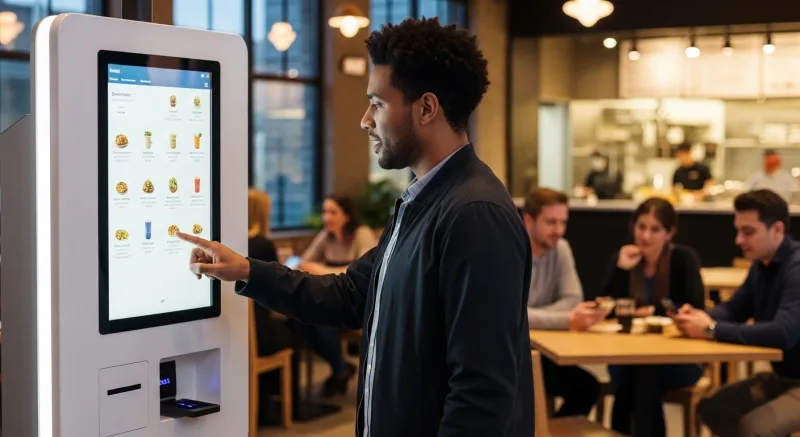
Rockin' Rolls Sushi Express deployed 49 iPad self-ordering stations across their 3 locations and saw immediate results: order accuracy jumped to 99.2%, average check size increased by $9.80, and table turn times decreased by 8 minutes during peak hours. Their servers initially worried about being replaced — instead, they were reassigned to higher-value tasks like quality checks and guest interaction, and their tip income increased because they were covering more tables.
Shogun Japanese Hibachi took a different approach. They configured their tableside tablets to display the hibachi cooking options visually — guests could see exactly what each protein upgrade looked like before committing. Premium protein upgrades increased by 34%, and new operators became proficient in under 5 minutes because the tablet interface guided them through every step.
The pattern is consistent: restaurants that commit to tableside ordering (not just test it) see check size increases of $8-$14, error reductions of 70-85%, and table turn improvements of 8-12 minutes.
Common Deployment Mistakes (And How to Avoid Them)
After working with hundreds of restaurants deploying tableside ordering, here are the mistakes that derail otherwise solid implementations:
- Buying cheap cases. A $15 case saves you $50 upfront and costs you $350 when the tablet shatters on the tile floor during a Saturday rush. Invest in restaurant-grade cases with hand straps and raised bezels. This is a $50 problem, not a $350 problem.
- Skipping the Wi-Fi audit. Run a coverage test before deploying tablets. Walk every table, every booth, the patio, the private dining room. If your signal drops below -65 dBm anywhere a server will stand, add an access point before going live. Read our POS network setup guide for the full checklist.
- Training everyone at once. Start with 2-3 of your strongest servers. Let them become experts and advocates. Then roll out to the rest of the team with built-in peer support.
- Not configuring modifier prompts. A tablet without intelligent upsell prompts is just a more expensive notepad. Spend time configuring which items prompt which modifiers. This is where the $12/table revenue increase comes from.
- Ignoring charging logistics. Dead tablets during dinner rush is an unforgivable deployment failure. Buy a charging station that holds all tablets, place it near the server station, and establish a "plug in when you walk by" culture. Battery should never drop below 30% during service.
Choosing a POS That Actually Supports Tableside Ordering
Not every POS system handles tableside ordering well. Some bolt it on as an afterthought. Others build it into the core architecture. The difference matters more than you think.
| Feature | Toast | Square | KwickOS |
|---|---|---|---|
| Real-time menu sync | Yes (cloud only) | Yes (cloud only) | Yes (local + cloud) |
| Offline ordering | Limited | No | Full offline mode |
| Photo menus on tablet | Yes | Limited | Yes |
| Tableside payment | Yes (Toast hardware only) | Yes (Square hardware only) | Any processor |
| Choose your own processor | No | No | Yes — save $3,000-$8,000/yr |
| Multi-language interface | English only | English, Spanish | English, Chinese, Spanish |
| Fingerprint server login | No | No | 1:N fingerprint auth |
The processor freedom alone makes KwickOS the financially smarter choice. Toast locks you into their 2.99% + $0.15 processing on every tableside payment. On a restaurant doing $50,000/month in card transactions, that's $4,768/year more than interchange-plus pricing. Over a 3-year Toast contract, you're handing them $14,304 in processing markups — enough to buy 30+ tablets. Read our full KwickOS vs Toast comparison for the detailed breakdown.
And then there's the offline reliability factor. Cloud-only systems like Toast and Square depend entirely on your internet connection. When it drops — and it will, especially during storms or peak hours when your ISP throttles — every tablet in the restaurant becomes a brick. KwickOS processes orders locally at 1ms latency. The kitchen display updates instantly over your local network. Even if your internet is down for an hour, service continues without interruption.
Implementation Checklist: From Purchase to First Shift
Here's your step-by-step deployment plan:
- Week 1: Hardware procurement. Order tablets, cases with hand straps, a charging station, and a tableside card reader. Budget $1,800-$3,000 for 4-6 units.
- Week 1: Wi-Fi audit. Test signal strength at every table. Add access points if needed. Set up a dedicated VLAN for POS devices.
- Week 2: POS configuration. Load your full menu with photos. Configure modifier prompts for every category. Set up tableside payment processing. Test 86'd item sync.
- Week 2: Champion training. Train 2-3 top servers during a slow shift. Let them practice on live tables with low stakes.
- Week 3: Parallel deployment. All servers carry tablets alongside traditional ordering. Track check sizes and error rates daily.
- Week 4: Full deployment. Tablets become the primary ordering method. Share the data: "Check sizes are up $12. Errors are down 80%. Tips are up $49/shift." Let results drive adoption.
Use our restaurant ROI calculator to project your specific revenue impact based on your current check size, cover count, and table turn times.
Ready to Put $12 More on Every Check?
KwickOS tableside ordering works on any tablet, with any payment processor, and syncs across all your locations. See it in action with a free demo.
Get a Free Demo