
 Ming Ye
You just spent $2,400 on a POS terminal. It looked great in the showroom. The sales rep said it was "the best on the market."
Three months later, the touchscreen is unresponsive during Friday dinner rush. The Wi-Fi drops every time someone microwaves something in the kitchen. And the battery — the one the rep promised would "last all day" — dies at 7 PM.
Now multiply that frustration by every shift, every server, every customer standing at the counter waiting while you reboot.
Here's the thing: this didn't have to happen. The difference between a terminal that survives 7 years of daily abuse and one that dies in 8 months comes down to about six specifications that most buyers never check — because most POS companies don't want you to check them.
They want you to look at the screen size and the monthly software fee. Not the processor speed, the IP rating, the operating temperature range, or whether the system actually stores data locally when your internet goes down.
This guide covers every hardware decision you need to make, with real specs, real prices, and the questions no sales rep will answer voluntarily.
The 6 Specs That Actually Matter (And the 4 That Don't)
Walk into any POS trade show and you'll hear a lot about "sleek design" and "intuitive interface." What you won't hear about are the six specifications that determine whether your terminal survives a real business environment.
Specs That Matter:
- Processor and RAM. A terminal with a quad-core ARM processor and 4GB RAM handles 200+ transactions per hour without lag. Anything less and you'll see 2-3 second delays on every transaction — multiplied across a full service, that's 30+ minutes of wasted customer time per shift.
- IP rating (Ingress Protection). IP54 means the terminal is protected against dust and water splashes. Anything below IP52 will fail in a kitchen-adjacent environment within 18 months. Most consumer tablets are IP00 — zero protection.
- Operating temperature range. Commercial terminals operate from 0°C to 50°C (32°F to 122°F). Consumer tablets throttle performance above 35°C. If your terminal sits within 10 feet of a grill, fryer, or oven, you need the commercial range.
- Connectivity: Ethernet + Wi-Fi + offline mode. Dual connectivity with automatic failover is non-negotiable. When Wi-Fi drops, the terminal should switch to Ethernet. When both drop, it should process transactions locally and sync when connectivity returns.
- Touchscreen type. Projected capacitive (PCAP) touchscreens work through thin gloves and resist scratches. Resistive touchscreens are cheaper but degrade faster and require more pressure. For environments where staff may have wet or gloved hands, PCAP is the only option.
- Power management. Fanless design eliminates the most common point of failure. Sealed power supply (internal, not a brick adapter) prevents cable-trip shutdowns. UPS or battery backup keeps the system running during brief power outages.
Specs That Don't Matter (But Sales Reps Love Talking About):
- "5K resolution display" — You're displaying menu items and prices, not editing photos. 1080p is more than sufficient for any POS application.
- "Ultra-thin design" — Thin means less room for cooling, smaller battery, and more fragile construction. In a restaurant, thicker is better.
- "Wireless charging" — A gimmick for POS. Wired power is faster and more reliable. Your terminal should be plugged in 24/7 anyway.
- "Face ID unlock" — Fingerprint 1:N authentication is faster, more hygienic in food service, and doesn't fail when staff are wearing masks or face shields.
But it gets worse: many business owners don't discover these spec gaps until the warranty expires. A terminal that runs fine for 90 days in a cool, clean environment will fail catastrophically when summer heat hits and the kitchen is running at full capacity.
Dedicated Terminal vs. Tablet: The Real Comparison
This is the most expensive decision most business owners get wrong. Tablet-based POS systems (iPad, Android tablets) look modern, feel familiar, and cost less upfront. Dedicated terminals cost more initially but almost always cost less over three years.
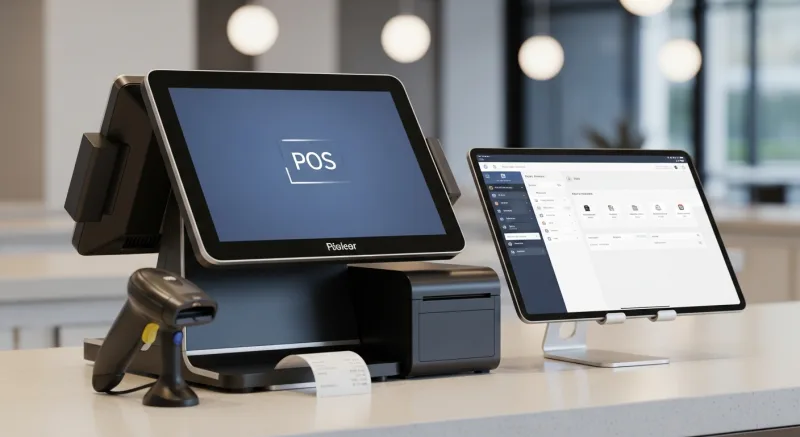
Here's the math most sales reps don't want you to see:
| Factor | iPad POS Setup | Dedicated Terminal |
|---|---|---|
| Initial hardware cost | $450 (iPad) + $150 (stand) + $200 (card reader) = $800 | $1,400-$1,800 |
| Expected lifespan | 2-3 years | 5-7 years |
| Replacements over 6 years | 2-3 replacements = $1,600-$2,400 | 0-1 replacement = $0-$1,800 |
| 6-year total cost | $2,400-$3,200 | $1,400-$3,600 |
| Downtime per failure | 1-3 days (buy new iPad, reconfigure) | Same-day swap (commercial support) |
| Revenue lost per day of downtime | $1,200-$3,800 (depending on station) | |
And that's not all: the hidden cost isn't the hardware replacement — it's the downtime. One day without a POS terminal at a busy station costs $1,200 to $3,800 in lost or delayed revenue. A dedicated terminal with commercial support gets a same-day replacement. An iPad requires a trip to the Apple Store, a factory reset, app reinstallation, and reconfiguration — minimum one full business day.
Rockin' Rolls Sushi Express learned this firsthand. They run 49 iPad self-ordering stations across 3 locations. Their initial cost was lower, but the key difference is that they use the iPads for customer-facing self-ordering only — not for the primary POS stations where staff process orders under time pressure. The checkout stations that handle payment and kitchen routing run on dedicated terminals with Ethernet connections and local data storage.
That hybrid approach — consumer tablets for customer-facing self-service, commercial terminals for staff-operated stations — is the sweet spot for most multi-location operations.
Screen Size: How Big Is Big Enough?
Screen size isn't about aesthetics. It directly affects order accuracy, transaction speed, and staff training time.
| Screen Size | Best For | Why |
|---|---|---|
| 10 inch | Quick-service, coffee shops, food trucks | Compact, fits tight spaces, fast item selection for small menus (under 50 items) |
| 13-14 inch | Retail, bubble tea, counter service | Balances space and usability. Handles moderate modifier complexity |
| 15.6 inch | Full-service restaurants, bars, multi-course | Room for complex orders, split checks, modifier grids. Reduces errors on 100+ item menus |
| 21+ inch | Kitchen display (KDS), drive-thru | Visibility from 6+ feet. Multiple order queues visible simultaneously |
Shogun Japanese Hibachi runs four 15.6-inch terminals — one per hibachi station — with customized display layouts that show the chef exactly which items are queued for their grill. New operators learn the system in under 5 minutes because every button is large enough to read and press accurately, even with wet hands. That's not possible on a 10-inch screen with the same menu complexity.
Here's the thing: adding a customer-facing display (second screen) changes the math on screen size. A customer-facing display offloads order verification to the customer, which means the operator screen can focus on speed rather than confirmation. Dual-screen setups reduce order errors by 31% across all screen sizes.
Connectivity: The Spec That Saves You During Rush Hour
Your terminal's connectivity setup determines whether Friday dinner rush is a well-oiled machine or a disaster.
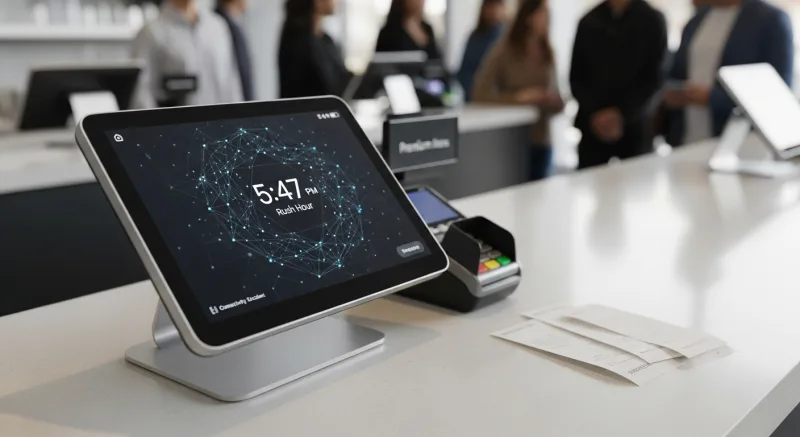
Most business owners think about connectivity as "does it have Wi-Fi?" That's the wrong question. The right question is: "What happens when Wi-Fi drops at 7 PM on Saturday with 45 open tickets?"
There are three levels of connectivity architecture:
Level 1: Cloud-only (Toast, Square). Every transaction goes to the cloud. Response time: 20-50ms per action. When internet drops, the terminal becomes a paperweight. You can't open checks, fire orders to the kitchen, or process payments. Average cost of a 30-minute internet outage during peak service: $1,800-$3,200.
Level 2: Cloud with limited offline cache. Some systems cache recent data locally. You can view open checks, but can't process new card payments until connectivity returns. Better than nothing, but still leaves you scrambling.
Level 3: Hybrid local+cloud (KwickOS architecture). The full application runs locally on the terminal. Every menu item, every order, every employee profile is stored on the device. Response time: 1ms. When internet drops, nothing changes — you keep taking orders, processing payments (deferred auth), and routing to kitchen printers. When connectivity returns, everything syncs automatically in the background.
T. Jin China Diner operates 15 stores with 75 terminals. Some locations are in strip malls with unreliable internet. Their hybrid setup means that even when Spectrum has an outage at their Flushing location, the dinner service runs at full speed. Orders process locally. Kitchen displays update locally. The only thing that pauses is cloud reporting — and that catches up within minutes once the connection is restored.
This isn't theoretical. It's the difference between a $0 outage impact and a $3,200 outage impact. Over five years, in areas with average U.S. internet reliability (99.5% uptime = ~44 hours of downtime per year), that's potentially $14,000-$28,000 in protected revenue per location.
Want to see how your current network setup handles POS traffic? Our POS network analyzer tool can help you identify bottlenecks before they become outages.
Payment Terminals: The Hardware Within Your Hardware
Your POS terminal and your payment terminal are two separate pieces of hardware. Many business owners don't realize they have a choice here, either — especially if their POS vendor bundles a mandatory payment device.
The key specifications for payment terminals in 2026:
- NFC / contactless support. 68% of under-35 customers now use tap-to-pay. If your terminal doesn't accept Apple Pay and Google Pay, you're creating friction for your fastest-spending demographic. See our contactless payment adoption guide for the full data.
- EMV chip speed. Older chip readers take 4-6 seconds per transaction. Current-generation terminals (Pax A35, Pax A80) complete chip reads in 1-2 seconds. Over 200 transactions per day, that's 13 minutes of saved wait time.
- Dual-screen capability. A customer-facing screen on the payment terminal lets customers verify their order, select tip amount, and confirm — reducing chargebacks and improving tip percentages by 8-15%.
- Processor independence. This is the one that matters most for your bottom line. If your payment terminal only works with one processor, you can't shop for better rates. A processor-agnostic system like KwickOS connects to any EMV terminal from any processor, saving merchants $3,000-$8,000 per year in processing fees by letting them negotiate their own rates.
Baked Cravings runs a Pax A35 self-serve terminal at Lego Land — 24-hour retail with no staff present. The terminal handles NFC, chip, and swipe payments, prints receipts, and syncs sales data back to their central dashboard. One terminal, zero labor cost, continuous revenue. That's the power of choosing the right payment hardware for the right use case.
Peripherals: The Equipment That Completes Your Station
A POS terminal alone doesn't make a POS station. Here's what you need around it — and what to spend.
Receipt Printer ($150-$400)
Thermal printers are standard for customer receipts — fast, quiet, and no ink to replace. Impact (dot-matrix) printers are still preferred for kitchen tickets because thermal paper fades in heat and humidity. Budget $200 per front-of-house station (thermal) and $350 per kitchen station (impact). Auto-cutter is non-negotiable; manual tear printers slow service by 3-5 seconds per order.
Cash Drawer ($100-$250)
Connected drawers that open automatically on cash transactions prevent the "forgot to ring it up" problem. Look for 5-bill / 8-coin compartments minimum, media slot for checks and coupons, and under-counter mounting if counter space is limited. Smart cash drawers that count automatically exist ($500+) but only make sense for locations processing over $3,000/day in cash.
Barcode Scanner ($150-$350)
Essential for retail. Optional for restaurants unless you're scanning loyalty cards or gift cards. 2D scanners ($250-$350) read QR codes and digital coupons in addition to traditional barcodes. 1D scanners ($150-$200) only read traditional barcodes. For 2026, 2D is the right choice — QR-based payments and loyalty are growing at 40% year-over-year.
Kitchen Display System ($300-$800)
Replaces paper tickets with a screen that auto-routes orders by station. Reduces ticket errors by 23% and eliminates lost-ticket scenarios entirely. IP-rated screens designed for kitchen environments cost more ($600-$800) but last 4x longer than a consumer monitor mounted in a kitchen. Shogun Japanese Hibachi's customized KDS displays are the difference between a 45-minute hibachi experience and chaotic, mis-timed courses.
Customer-Facing Display ($200-$500)
A second screen that shows the customer their order in real time. Reduces order disputes, increases upsells (through promotional content during idle time), and improves tip amounts. The ROI on a customer-facing display is typically 2-3 weeks based on reduced errors and increased tips alone.
Security: The Hardware Feature Nobody Thinks About Until It's Too Late
POS terminals store sensitive data — transaction records, employee information, customer payment tokens. The hardware security of your terminal is your first line of defense.
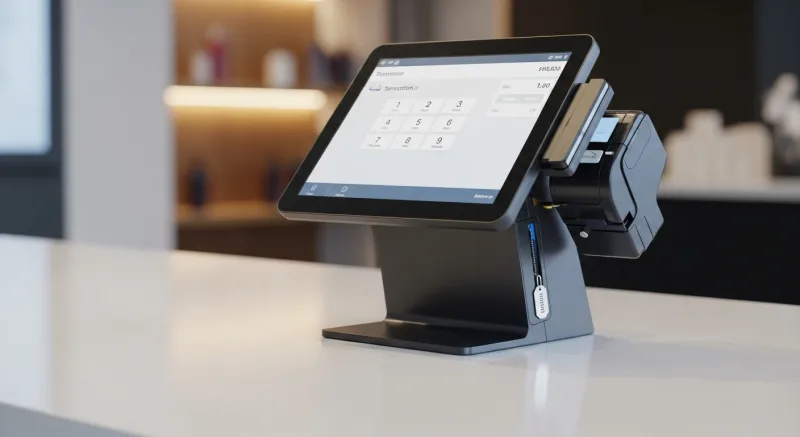
Fingerprint authentication is the single most impactful security feature in POS hardware. KwickOS terminals support both 1:N (identify who's clocking in from any fingerprint reader) and 1:1 (verify a specific employee's identity before allowing voids, discounts, or cash drawer access). Toast doesn't support fingerprint authentication at all.
Here's what fingerprint auth prevents:
- Buddy punching — employees clocking in for absent coworkers. Average cost: $372/employee/year across a 10-person staff.
- Unauthorized voids and discounts — without biometric verification, anyone who knows a manager PIN can process a void. With fingerprint, only the actual manager can authorize it.
- Cash drawer access — fingerprint-locked drawers create an audit trail for every single open. No more "I don't know who was in the drawer."
Diva Nail Beauty operates 4 stores with fingerprint-authenticated terminals. Their automated commission tracking — tied directly to fingerprint clock-in — increased payroll accuracy by 90%. Before implementing biometric auth, commission disputes consumed 6+ hours per week across their locations. Now it's zero.
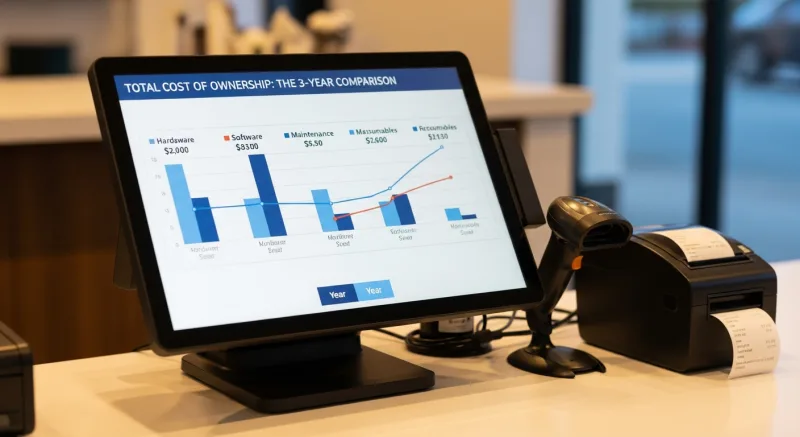
Total Cost of Ownership: The 3-Year Comparison
Here's the honest math on what a complete POS hardware setup costs over three years, across the major platforms:
| Cost Component | Toast | Square | Clover | KwickOS |
|---|---|---|---|---|
| Terminal hardware (per station) | $0-$799* | $149-$799 | $599-$1,799 | $1,200-$1,800 |
| Receipt printer | Included* | $399 | Included | $200 |
| Cash drawer | $119 | $129 | Included | $120 |
| Monthly software (3 years) | $69-$165/mo = $2,484-$5,940 | $0-$60/mo = $0-$2,160 | $14.95-$89.95/mo = $538-$3,238 | Contact for pricing |
| Processing fees on $40K/mo (3 years) | 2.99%+$0.15 = $49,224 | 2.6%+$0.10 = $41,553 | 2.3%+$0.10 = $37,692 | IC+0.20%+$0.10 = $34,920 |
| 3-Year Total (1 station) | $51,827-$55,883 | $42,230-$44,541 | $38,829-$42,729 | $36,440+ |
* Toast's $0 hardware requires a 2-year contract at the highest processing rate. The "free" terminal costs $14,304 more in processing fees over that contract period.
The pattern is clear: lower hardware cost almost always means higher total cost. Processing fees dwarf every other expense category. A business spending $40,000/month in card transactions pays more in processing fees over three years than they'll ever spend on hardware, software, printers, and peripherals combined.
That's why processor freedom — the ability to choose and negotiate your own payment processing rates — is the single most important factor in POS hardware selection. Not the screen size. Not the design. Not the monthly software fee. The processing rate.
Use our processing fee calculator to see your actual 3-year total cost across different platforms.
The Hardware Buying Checklist
Before you sign anything, confirm these 12 items with your POS vendor. If they can't answer all of them, that's your answer.
- What is the processor speed and RAM? (Minimum: quad-core, 4GB)
- What is the IP rating? (Minimum: IP54 for food service)
- What is the operating temperature range? (Minimum: 0°C to 50°C)
- Does the terminal work fully offline? (Not "limited offline" — fully)
- Is the design fanless? (Fans fail. Period.)
- What is the touchscreen type? (PCAP, not resistive)
- Does it support fingerprint authentication? (1:N and 1:1)
- Can I use any payment processor? (Not "our partners" — any)
- What is the warranty length and replacement process? (Same-day swap?)
- What peripherals are included vs. additional cost?
- Does it support multiple languages? (English, Chinese, Spanish at minimum)
- What is the expected lifespan in a commercial environment?
Print this list. Bring it to every POS demo. The vendors who welcome these questions are the ones worth buying from. The vendors who deflect are the ones selling you a $2,400 mistake.
Get Hardware That Lasts
KwickOS runs on commercial-grade terminals with hybrid local+cloud architecture, fingerprint authentication, and processor freedom. See the hardware in action.
Schedule a Hardware Demo