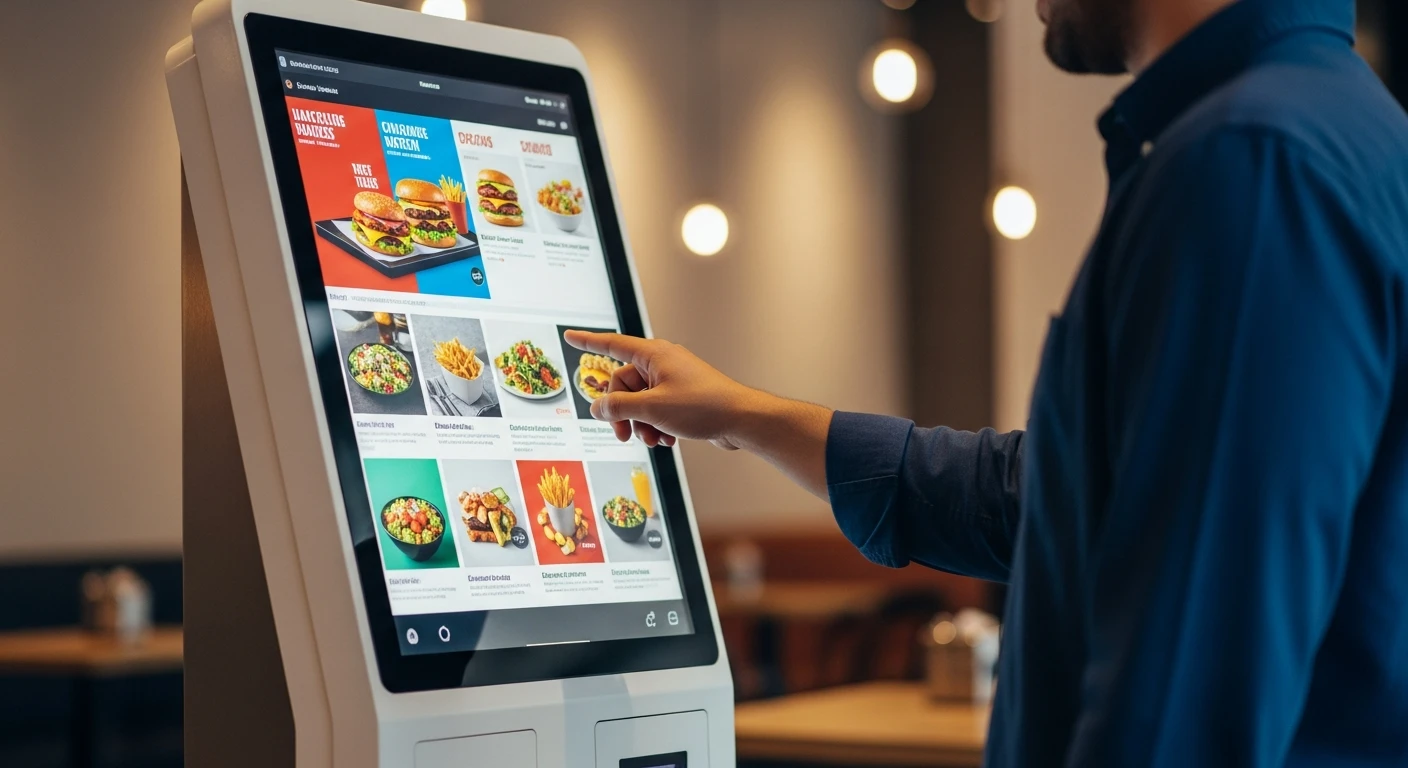
McDonald's spent $6 billion deploying self-ordering kiosks across 14,000 U.S. locations. The result? A 30% increase in average ticket size. Not because the food got better. Not because the prices changed. Because a screen does something a cashier will not: it upsells every single customer, every single time, without hesitation, without awkwardness, without forgetting.
"Would you like to add a drink?" "Upgrade to a large?" "Add a cookie for $1.99?" These suggestions appear on the kiosk screen for every order. And customers say yes far more often than they do to a human cashier. The reason is psychological: there is no social pressure at a kiosk. Nobody is watching. Nobody is judging. The customer takes their time, browses the full menu, and makes impulse additions they would never request at a counter.
But here is what most restaurant owners assume wrong about kiosks: they think this technology is only for McDonald's-scale operations. They picture massive freestanding terminals that cost $10,000 each and require a team of engineers to install.
The reality in 2026? An iPad, a stand, and a payment terminal. Total hardware cost: $400-$700 per station. Payback period: 4-8 weeks.
Rockin' Rolls Sushi Express proved this at scale. They deployed 49 iPad self-ordering stations across 3 locations, integrated with KwickOS KDS for kitchen routing. The result: faster service, lower labor dependency, and higher average tickets—at a fraction of what a traditional kiosk deployment would cost.
This guide covers everything: the real ROI numbers, hardware options at every budget, menu configuration that maximizes upsells, kitchen integration, and the competitive landscape. By the end, you will know exactly whether kiosks make sense for your operation and exactly how to deploy them.
The ROI Case: Why Kiosks Pay for Themselves in Weeks, Not Months
Let us build a real financial model. No vague projections. No "up to" qualifiers. Just math.
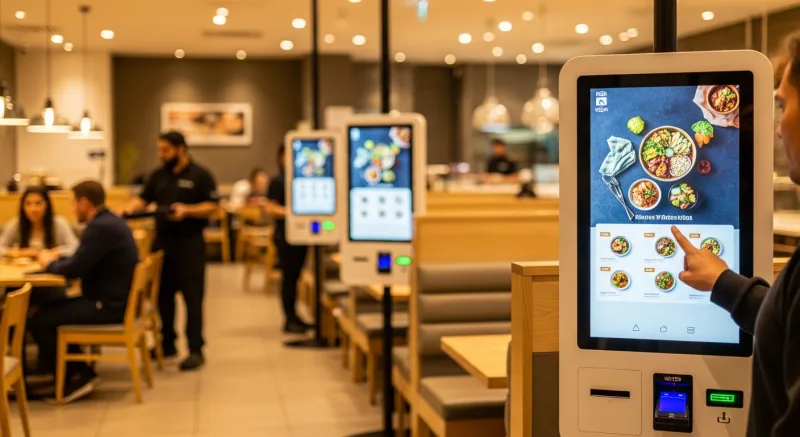
Self-Ordering Kiosk ROI Calculator
Assumptions: Fast-casual restaurant, 300 daily orders, $18 average check, 2 kiosks handling 40% of orders
Read that payback period again: two to three weeks. There are very few capital investments in the restaurant industry that return their cost in under a month. Self-ordering kiosks are one of them.
And the numbers above are conservative. They assume only a 25% check increase (the industry average ranges from 20-30%) and only 40% of orders going through kiosks (many locations reach 60-70% kiosk adoption within 3 months).
Why Kiosks Increase Check Size: The Behavioral Mechanics
The 20-30% check increase is not accidental. Four specific behavioral mechanisms drive it:
1. Consistent Upselling (The Biggest Factor)
A human cashier upsells inconsistently. They forget. They feel awkward. They rush during the lunch rush. They skip the suggestion for customers who seem impatient. A kiosk upsells every customer, every order, every time.
After each menu item selection, the KwickOS kiosk screen presents relevant additions: "Add a side for $3.99?" "Make it a combo for $2 more?" "Try our new seasonal drink for $4.50?" The suggestions are configured per menu item, so a burger order suggests fries and drinks while a salad order suggests soup and bread.
The conversion rate on kiosk upsell prompts averages 30-40%. Compare this to cashier upselling, which typically converts at 5-15% depending on training quality and time of day.
2. Full Menu Visibility
At a counter, customers feel pressure to order quickly. The line is building behind them. The cashier is waiting. They default to their usual order without exploring new items or premium options.
At a kiosk, there is no line pressure. Customers browse at their own pace. They see high-resolution photos of every menu item. They discover items they did not know existed. They explore the "Chef's Specials" and "New Items" sections that they would never ask a cashier about.
This browsing behavior consistently drives customers toward higher-margin items—the seasonal specials, the premium combos, the limited-time offerings that never get mentioned in a 30-second counter interaction.
3. Elimination of Judgment Anxiety
This one is subtle but powerful. Some customers feel embarrassed ordering large quantities, adding extra sides, or customizing heavily at a counter. They worry about being judged. At a kiosk, that anxiety vanishes. The customer adds the extra side of guacamole, the second appetizer, the large drink instead of the medium. Nobody is watching. Nobody is counting.
4. Modifier and Customization Revenue
Kiosk screens can present modifiers and customizations more effectively than verbal ordering. "Add avocado (+$2)" "Extra cheese (+$1)" "Premium sauce selection (+$0.75)"—each modifier is visually presented with a price and a tap-to-add interface. Customers add modifiers they would never verbally request because the visual presentation makes it effortless.
Case Study: Rockin' Rolls Sushi Express—49 iPad Stations Across 3 Locations
Rockin' Rolls Sushi Express operates a fast-casual sushi concept with 3 locations. Their challenge: high volume during peak hours, a menu with extensive customization options (protein choices, roll styles, toppings), and long wait times at the counter as customers deliberated over complex orders.
Their solution: 49 iPad self-ordering stations deployed across all three locations, running KwickOS kiosk software integrated with KwickOS KDS for kitchen routing.
The results:
- Customers build their custom sushi rolls visually on the iPad screen, selecting proteins, toppings, and sauces without verbal confusion
- Orders route directly to the kitchen display system, eliminating manual ticket entry entirely
- Serving time reduced significantly through parallel ordering (multiple customers order simultaneously on different iPads)
- Order accuracy improved dramatically—customers see exactly what they are ordering before submitting
The key insight from Rockin' Rolls: kiosks are not just about labor savings. They fundamentally redesigned the ordering experience. Customers who previously struggled to communicate complex sushi customizations at the counter now build their orders visually, confidently, and accurately.
Case Study: Baked Cravings—Self-Serve Kiosk at Lego Land
Baked Cravings operates a bakery concept with a unique challenge: a self-serve kiosk location at Lego Land that operates extended hours, including 24-hour retail capability. With the PaxA35 terminal running KwickOS, customers order and pay entirely through the kiosk without any staff interaction.
This is the frontier of kiosk deployment: fully unattended retail. The KwickOS kiosk handles order placement, payment processing, and receipt generation. Kitchen prep is triggered automatically. The entire transaction completes without a single employee interaction.
For restaurant operators exploring unattended or limited-staff locations—airport terminals, hotel lobbies, entertainment venues—this model proves the viability of kiosk-only service powered by KwickOS.
Hardware Options: From $400 iPad Kiosks to $5,000 Freestanding Terminals
KwickOS supports the full range of kiosk hardware. Here is your decision framework:
Kiosk Hardware Comparison
| Option | Cost | Best For | Pros | Cons |
|---|---|---|---|---|
| iPad + Stand | $400-$700 | Table-side, counter | Low cost, flexible placement, familiar interface | Smaller screen, less durable |
| Android Tablet + Stand | $300-$500 | Budget deployment | Lowest cost, runs KwickOS natively | Variable build quality |
| Countertop Terminal (PaxA35) | $500-$900 | Compact spaces, unattended | Built-in payment, small footprint | Smaller screen |
| Wall-Mounted Display | $1,000-$2,000 | High-traffic entry areas | Large screen, eye-level, no floor space | Fixed location, installation required |
| Freestanding Kiosk | $2,000-$5,000 | QSR, high-volume | Professional appearance, built-in printer + scanner | Highest cost, needs floor space |
Our recommendation for most restaurants: Start with 2 iPad-based kiosks at $400-$700 each. Place them near the entrance where customers naturally queue. Evaluate results over 30 days. If the data supports it (it almost always does), expand to additional stations.
KwickOS runs on standard hardware—iPads, Android tablets, Linux-based terminals. There is no proprietary kiosk hardware requirement. You buy the hardware that fits your budget and aesthetic, and KwickOS provides the software at no additional monthly cost.
Menu Configuration for Maximum Kiosk Revenue
The kiosk interface is only as good as your menu configuration. Here are the configuration principles that maximize check size:
1. Lead with Photos
Every menu item on the kiosk should have a high-quality photo. Items with photos sell 30% more than text-only listings. KwickOS kiosk supports full-resolution images for every item, modifier, and combo option. If you do not have professional photos yet, take them with a smartphone using natural lighting—even decent photos outperform no photos by a wide margin.
2. Structure for Upsells
Configure your menu in KwickOS so that every item triggers relevant upsell prompts. A burger should prompt: "Add fries and a drink for $3 more?" A pizza should prompt: "Add a side salad for $4.99?" A coffee should prompt: "Make it a large for $0.75 more?" These prompts are configurable per item in the KwickOS admin panel.
3. Create Combo Deals
Combos are the single highest-revenue kiosk feature. Customers who order individual items often switch to a combo when they see the savings presented visually. Configure 3-5 combo options that bundle your highest-margin items. Display the individual price versus the combo price prominently.
4. Feature High-Margin Items
The kiosk home screen should feature your highest-margin items, not your most popular items. "Chef's Recommendations" and "New Items" sections positioned at the top of the kiosk flow consistently drive customers toward premium selections. In KwickOS, you can pin featured items to the kiosk home screen and rotate them seasonally.
5. Make Modifiers Irresistible
Paid modifiers (extra protein, premium toppings, sauce upgrades) are pure margin. Present them with photos and descriptive text. "Add grilled shrimp (+$3.99)" with a photo of golden shrimp converts better than "Add protein (+$3.99)" as plain text. KwickOS modifier configuration supports photos, descriptions, and per-item pricing.
Kitchen Integration: Kiosk to KDS in Under 1 Second
A kiosk that takes orders but does not route them to the kitchen efficiently creates chaos. The entire value proposition breaks down if the kitchen cannot keep up with kiosk order volume.
KwickOS kiosks are natively integrated with the KwickOS Kitchen Display System. Here is the order flow:
- Customer submits order on kiosk. Payment processes locally through the attached terminal.
- Order routes to KDS within 1 second over the local network (not through the cloud). Station-specific routing: grill items go to the grill screen, drinks go to the bar screen, desserts go to the prep screen.
- Kitchen prepares the order using KDS timing alerts and priority queuing. The kiosk order is visually distinguished from counter and online orders so kitchen staff can manage flow.
- Order completion triggers customer notification. For dine-in kiosk orders, a pager or table number is assigned. For takeout kiosk orders, the customer-facing display shows the order status.
This entire flow happens over the local network. If the internet goes down, kiosk orders still route to KDS, payments still process, and the kitchen keeps producing. This is the KwickOS hybrid local+cloud advantage—cloud-only kiosk systems go dark during internet outages.
KwickOS Kiosk vs. Competitors: The Real Comparison
Self-Ordering Kiosk Platform Comparison
| Feature | KwickOS | Toast | Square | Clover |
|---|---|---|---|---|
| Native self-ordering kiosk | Yes | No (uses third-party) | Limited (Square Kiosk) | No (uses third-party) |
| Monthly kiosk software fee | $0 | N/A (no native offering) | $60/mo per location | N/A (no native offering) |
| KDS integration | Native (1ms local) | Cloud only (if integrated) | Cloud only | Varies by app |
| Offline ordering capability | Yes (hybrid local+cloud) | No | No | No |
| Hardware requirement | Any iPad/tablet/terminal | Toast hardware only | iPad only | Clover hardware only |
| Loyalty integration at kiosk | Yes (phone # entry) | N/A | Yes | Varies |
| Processor requirement | Any processor | Toast Payments only | Square Payments only | Fiserv only |
The competitive gap on kiosks is wide. Toast does not offer a native self-ordering kiosk at all—they rely on third-party integrations that add cost and complexity. Clover is in the same position. Square offers Square Kiosk, but it requires Square Payments and charges an additional monthly fee per location.
KwickOS provides native kiosk software that runs on any hardware, integrates directly with KDS and POS, works offline, and costs nothing beyond your existing KwickOS subscription.
Step-by-Step: Deploying Your First Kiosk on KwickOS
Week 1: Hardware and Configuration
- Purchase hardware. For most restaurants, 2 iPads (10th generation or newer) with Lavu or WindFall stands plus payment terminals. Budget: $800-$1,400 total.
- Configure kiosk mode in KwickOS. Admin → Devices → Add Kiosk. Select the menu categories visible on the kiosk (you may want to exclude catering or bulk items). Enable upsell prompts. Configure combo deals.
- Upload menu photos. Every item that will appear on the kiosk needs a photo. Prioritize your top 20 sellers and all combo options.
- Set up payment integration. Connect the payment terminal to the kiosk. Test with a $1 transaction.
Week 2: Testing and Training
- Staff testing. Have every team member place 3-5 orders through the kiosk. Identify any confusing flows or missing modifiers.
- Kitchen integration test. Confirm that kiosk orders appear on the KDS correctly, with proper station routing and order type labeling.
- Payment end-to-end test. Process 10 test transactions covering: credit card, debit card, Apple Pay, Google Pay, gift card, and split payment.
Week 3: Soft Launch
- Deploy during off-peak hours first. Run kiosks alongside counter ordering for 3-5 days. Station a team member near the kiosks to assist customers who need help.
- Monitor KDS flow. Ensure the kitchen can handle the increased order volume and parallel ordering that kiosks enable.
- Collect data. Compare kiosk average check vs. counter average check from day one. Track kiosk adoption rate (% of orders through kiosk vs. counter).
Week 4+: Full Deployment
- Move kiosks to primary ordering position. Reduce counter ordering to a single cashier for customers who prefer human interaction.
- Optimize upsell prompts. Review which prompts convert and which are ignored. Adjust based on 30 days of data.
- Consider expansion. If kiosk adoption exceeds 50% and average check increase exceeds 15%, add additional stations.
Frequently Asked Questions
Ready to Increase Your Average Check by 30%?
KwickOS kiosk software runs on any iPad or tablet—no proprietary hardware, no monthly kiosk fees. See it in action with a live demo.
Book Your Free Demo(888) 355-6996 · 6405 Cypresswood Dr #250, Spring TX 77379