 Tom Jin
A bartender squints at a ticket that reads "well-done ribeye, side of mashed potatoes."
He flips it over, checks the station name. It says BAR.
Meanwhile, on the hot line, the grill cook is staring at three cocktail orders that just printed on his ticket rail: a Negroni, an Old Fashioned, and a draft IPA. He rips the ticket off and walks it over to the bar — 45 seconds wasted. The bartender hands him the steak ticket — another 30 seconds. Now multiply that by every order during a 200-cover Friday night.
That is what one wrong printer route costs you: 45 minutes of accumulated chaos, 12 to 18 delayed tables, and at least $600 in comps and lost tips.
Here's the thing: printer setup is not a hardware problem. You already have the printers. It is a configuration problem — and 80% of restaurants we onboard at KwickOS have at least one routing error that has been silently costing them time and money for months.
This guide walks you through exactly how to configure every printer station in your restaurant, from the receipt printer at the host stand to the last ticket printer in the prep kitchen. We will cover routing rules, station assignments, backup failover, wired vs wireless, and the print group logic that makes it all work.
How Restaurant Printer Routing Actually Works
Before you touch a single cable, you need to understand the logic layer that sits between your POS terminal and your printers.
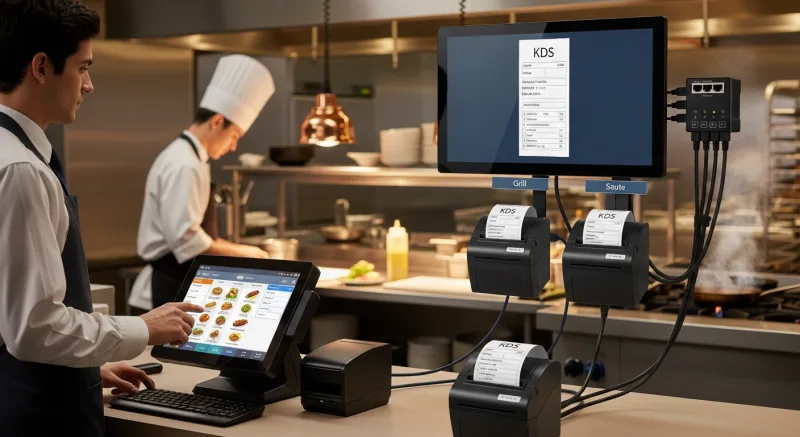
Every item on your menu belongs to a print group (sometimes called a "print category" or "routing class"). A print group is simply a label that tells the POS: "When this item is ordered, send it to this printer."
Here is a basic example for a full-service restaurant:
| Print Group | Menu Items | Routes To |
|---|---|---|
| HOT KITCHEN | Appetizers, entrees, sides, soups | Kitchen Printer 1 (hot line) |
| COLD KITCHEN | Salads, cold appetizers, desserts | Kitchen Printer 2 (cold/prep station) |
| BAR | Beer, wine, cocktails, mocktails | Bar Printer |
| RECEIPT | All items (for customer copy) | Front Receipt Printer |
When a server rings in an order that contains a Caesar salad, a ribeye, and a Margarita, the POS does not print one combined ticket to one printer. It splits the order into three separate tickets and sends each to the correct station — Caesar to cold, ribeye to hot, Margarita to bar. All simultaneously. All within 200 milliseconds.
But it gets worse: if even one item is assigned to the wrong print group — or worse, has no print group assigned — that item either prints at the wrong station or does not print at all. The server assumes the kitchen got it. The kitchen never saw it. Fifteen minutes later, the table is asking where their appetizer is.
5 Printer Stations Every Restaurant Needs (And How to Configure Each)
Not every restaurant needs the same number of printers, but here is the baseline configuration that works for most full-service and fast-casual operations.
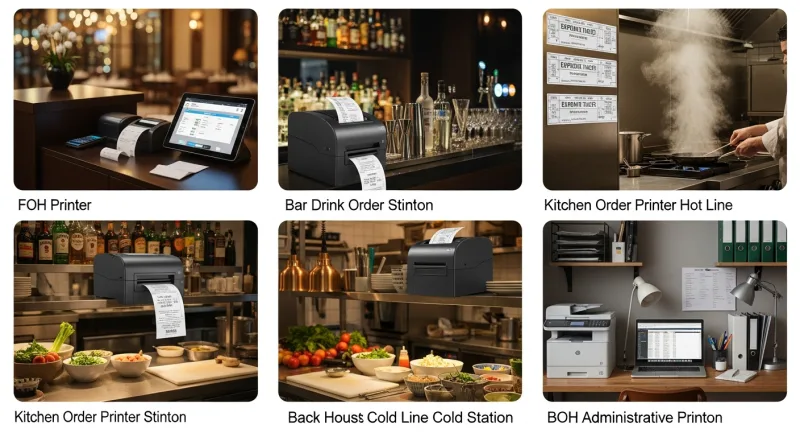
Station 1: The Front Receipt Printer
Location: Next to the front POS terminal, typically at the host stand or cashier station.
Type: Thermal receipt printer (Epson TM-T88VI or Star TSP143IV are the industry standards).
What it prints: Customer receipts, credit card slips, end-of-day reports, gift card activation confirmations.
Configuration tips:
- Set paper width to 80mm (standard receipt width). Do not use 58mm — the narrower format cuts off modifier text and makes receipts unreadable.
- Enable auto-cut after each receipt. Manual tear-off slows down your cashier by 3 to 5 seconds per transaction.
- If you process 200+ transactions per day, set up a backup receipt printer or keep a spare thermal roll loaded and ready. Running out of paper mid-rush with a line out the door is a $300+ problem.
Station 2: The Main Kitchen Printer (Hot Line)
Location: Mounted on the wall or shelf at the expeditor end of the hot line, visible to the lead cook.
Type: Impact printer (Epson TM-U220 or Star SP742). Impact printers use ink ribbons instead of thermal paper, which means tickets do not fade in the heat and steam of a kitchen. Never use a thermal printer in the kitchen — thermal paper turns black when exposed to heat, making tickets unreadable within minutes.
What it prints: All hot food items — appetizers, entrees, sides, soups, fried items.
Configuration tips:
- Print ticket headers in large, bold font — table number and server name should be readable from 4 feet away.
- Print modifiers in red ink if your printer supports dual-color ribbons. "NO PEANUTS — ALLERGY" in red saves lives.
- Set the ticket to print the time the order was placed at the top. This gives the expo a visual timer without needing a KDS.
- Enable the kitchen buzzer or bell alert for every new ticket. In a noisy kitchen, a visual ticket arriving silently on the rail gets missed.
And that's not all: if your kitchen runs separate stations (grill, saute, fry), you may need multiple kitchen printers with sub-routing. More on that in the advanced section below.
Station 3: The Cold/Prep Station Printer
Location: At the salad or cold prep station, separate from the hot line.
Type: Impact printer (same model as kitchen — consistency in ribbon and paper saves you from stocking two supply types).
What it prints: Salads, cold appetizers, desserts that require plating, any item that does not touch a heat source.
Why it matters: Without a dedicated cold station printer, salad orders print on the hot line, and the cold prep cook has to walk over, find the salad ticket among 15 entree tickets, and walk back. That is 30 to 60 seconds per order. Over a 150-cover dinner service, you lose 45 to 90 minutes of prep labor. At $18/hour, that is $13.50 to $27 per night — $4,900 to $9,800 per year in wasted labor from a printer that costs $350.
Station 4: The Bar Printer
Location: Behind the bar, within arm's reach of the primary bartender position.
Type: Thermal or impact — either works since bar environments are typically cooler than kitchens. Thermal printers are quieter, which matters if your bar area is part of the dining atmosphere.
What it prints: All beverage orders — cocktails, beer, wine, mocktails, coffee drinks if the bar handles them.
Configuration tips:
- Print drink orders in the sequence they should be made — cocktails first (longest prep), then wine/beer (pour and serve). Some POS systems let you set print priority within a ticket.
- Include the seat number on bar tickets so the bartender or food runner knows which guest at the table gets which drink.
- If your bar handles both dine-in drink orders and bar-seated food orders, you may need a second bar printer or a combined ticket that includes the bar guest's food items routed from the kitchen.
Station 5: The Expo/Runner Printer (Optional but Powerful)
Location: At the pass — the window or counter where the kitchen meets the front-of-house.
Type: Thermal (since it is outside the kitchen heat zone).
What it prints: A combined summary ticket of the entire order, showing all items across all stations. The expo uses this to verify that every item for a table is ready before sending the food runner.
Shogun Japanese Hibachi uses exactly this setup — a dedicated expo printer at the pass that shows the complete order across their hibachi grill stations and sushi bar. Their expo cook told us it cut fire-to-table time by 3 minutes per order because they stopped chasing individual station tickets.
Wired vs Wireless: The $2,300 Question
Let me be blunt: use wired Ethernet for every fixed printer station.
I have been in the restaurant technology business for 30 years. I have seen hundreds of printer installations. And the single most common support call we get — bar none — is "my kitchen printer stopped printing." Nine times out of ten, it is a wireless printer that dropped its WiFi connection.
Here is why wireless fails in restaurants:
- Microwave interference. Commercial microwaves operate on 2.4GHz — the same frequency as most WiFi networks. Every time someone heats a plate, your printer signal competes with 1,000 watts of electromagnetic noise.
- Customer device congestion. A packed restaurant with 80 guests means 80+ phones pinging your WiFi router (even if they are not connected, they are scanning). This saturates the wireless channel.
- Metal kitchen equipment. Walk-in coolers, steel prep tables, and commercial ovens create signal dead zones. A printer that works fine during setup fails during service when the kitchen is full of staff and equipment.
- Power cycle amnesia. Some wireless printers lose their WiFi credentials after a power outage and need to be re-paired manually. If the power flickers at 5 PM on a Saturday, you are reconfiguring a printer during peak service.
A single WiFi dropout during a 200-cover Friday night can cause 15 to 30 minutes of missed tickets. At an average check of $45, that is $2,250 to $2,300 in delayed orders, comps, and lost customer trust.
Wired Ethernet printers connect directly to your network switch. No interference. No signal drops. No re-pairing. The cable costs $8. The reliability is worth $8,000.
The only exception: patio service, food trucks, or temporary pop-up stations where running cable is physically impossible. In those cases, use a WiFi printer on a dedicated 5GHz network (not your customer WiFi) with a static IP address.
Print Groups: The Logic That Makes or Breaks Your Kitchen
Print groups are the invisible rules that determine where every ticket goes. Get them right, and your kitchen runs like a machine. Get them wrong, and you will spend every shift putting out fires that should never have started.
Here's the thing: most POS systems let you create custom print groups and assign them at the menu item level. But most restaurants set them up once during installation and never touch them again — even as the menu changes, stations shift, and new items get added.
This is where the problems start.
The 4 Most Common Print Group Mistakes
- New menu items with no print group. You add a seasonal special to the menu. You set the price, the description, the modifiers. But you forget to assign a print group. The item defaults to "receipt only" — the server rings it in, the customer gets charged, but the kitchen never sees the ticket. This happens at least once a month in 60% of the restaurants we audit.
- Desserts routed to the hot line. Desserts are a cold-station item in most kitchens. But when the print groups were set up, someone lumped "desserts" into the "entrees" group because they are both food. Now your dessert orders fight for ticket rail space next to 25 entree tickets, and the cold prep cook never sees them.
- Bar food that only prints at the bar. Many restaurants have a bar food menu — wings, nachos, sliders. These items need to print at both the bar (so the bartender knows the table is waiting for food) and the kitchen (where the food is actually prepared). Single-route configuration means either the kitchen or the bar is in the dark.
- Modifier-dependent routing. A burger is a hot line item. But a burger "to go" may need to print at a separate to-go station for packaging. Most basic POS systems cannot route based on modifier — the item goes to the same printer regardless of the modifier. Advanced systems like KwickOS support conditional routing rules that change the destination based on order type (dine-in, takeout, delivery).
How to Audit Your Print Groups in 15 Minutes
Do this quarterly, or after every menu change:
- Pull up your full menu in the POS back office.
- Export or print the list of all items with their assigned print groups.
- Cross-reference every item against the physical station where it is prepared.
- Flag any item with no print group assigned.
- Flag any item that routes to a station where it is not prepared.
- Test by placing a dummy order with one item from each print group and verifying each ticket prints at the correct station.
This 15-minute audit catches 90% of routing errors before they cost you during service.
Advanced: Multi-Station Kitchen Routing
For high-volume restaurants with specialized cook stations, basic "hot kitchen" and "cold kitchen" routing is not enough. You need sub-station routing.
Here is how Crafty Crab Seafood configured their 19 locations with 152 terminals:
| Print Group | Station | Printer | Items |
|---|---|---|---|
| GRILL | Grill station | Kitchen Printer 1 | Steaks, grilled fish, grilled chicken |
| FRY | Fry station | Kitchen Printer 2 | Fried shrimp, fries, hushpuppies, fried calamari |
| SAUTE | Saute station | Kitchen Printer 3 | Pasta, seafood boils, sauteed vegetables |
| COLD | Cold prep | Kitchen Printer 4 | Salads, oysters on the half shell, ceviche |
| EXPO | Pass window | Expo Printer | Full order summary (all items) |
The result: each cook only sees tickets for their station. No hunting through a rail of 30 tickets to find the 6 that belong to them. Crafty Crab reported a 4-minute reduction in average ticket time after implementing sub-station routing across all 19 locations with KwickOS — a change that took exactly one click to sync to every store via centralized menu management.
Backup Printers and Failover: The Insurance You Cannot Skip
Your main kitchen printer will fail. It is not a question of if — it is a question of when. Ink ribbon runs out. Paper jams. Network cable gets yanked by a prep cook moving a sheet pan. A power surge takes it offline.
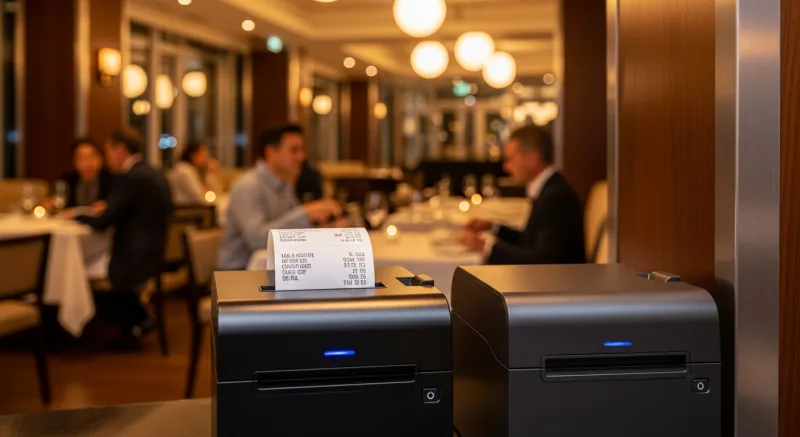
And when it happens during a Friday rush, every second without a working printer is a table waiting for food that nobody is cooking.
Failover configuration designates a backup printer that automatically receives tickets when the primary printer goes offline. Here is how to set it up:
- Primary kitchen printer fails → tickets reroute to the bar printer (or expo printer).
- Primary bar printer fails → tickets reroute to the kitchen printer (bartender walks to the pass to read drink orders).
- Primary receipt printer fails → receipts reroute to a secondary receipt printer or print at the bar.
KwickOS supports automatic failover detection — if the primary printer does not respond within 3 seconds, the ticket routes to the backup and sends an alert to the manager's screen. No manual intervention. No lost tickets. The manager sees the alert, troubleshoots the primary, and resets when ready.
Compare that to systems like Toast, where a printer failure means manually reassigning routes in the back office — while your kitchen is down. That is the difference between a 3-second automatic recovery and a 5-minute manual scramble. On a Friday night, those 5 minutes cost you 8 to 12 delayed orders.
Want to see how your current setup compares? Check our KwickOS vs Toast comparison for a detailed breakdown of operational features.
The Complete Printer Setup Checklist
Use this checklist whether you are setting up a new restaurant or auditing an existing one:
| Step | Task | Status |
|---|---|---|
| 1 | Map every prep station that needs its own ticket | ☐ |
| 2 | Assign one printer per station (impact for kitchen, thermal for FOH) | ☐ |
| 3 | Run Ethernet cable to every fixed printer (no WiFi in kitchen) | ☐ |
| 4 | Assign static IP addresses to every printer (prevents IP conflicts after power outages) | ☐ |
| 5 | Create print groups matching your kitchen stations | ☐ |
| 6 | Assign every menu item to the correct print group | ☐ |
| 7 | Configure a failover printer for each primary printer | ☐ |
| 8 | Test with dummy orders — one item per print group per station | ☐ |
| 9 | Verify ticket font size is readable from 4 feet at kitchen stations | ☐ |
| 10 | Enable audio alerts (buzzer/bell) on kitchen and bar printers | ☐ |
| 11 | Stock backup paper rolls and ink ribbons at each station | ☐ |
| 12 | Document the full printer map (IP, location, print groups, failover) and post it in the manager's office | ☐ |
This entire setup takes 2 to 4 hours for a new restaurant with a processor-agnostic POS like KwickOS. For restaurants switching from Toast or Square, most of the time is spent re-mapping print groups because those systems do not let you customize station-level routing with the same granularity.
Real-World Printer Configurations by Restaurant Type
Different restaurant formats need different printer setups. Here is what we have seen work across 5,000+ KwickOS installations:
Quick-Service / Fast-Casual (2-3 printers)
- 1 front receipt printer
- 1 kitchen ticket printer
- Optional: 1 expo/order-ready printer
Full-Service Restaurant (4-6 printers)
- 1 front receipt printer
- 1-2 kitchen printers (hot line + cold/prep)
- 1 bar printer
- 1 expo printer
- Optional: 1 to-go station printer
Multi-Station Concept (6-10 printers)
This applies to operations like Crafty Crab (19 stores) or large hibachi-and-sushi concepts like Shogun, where you need individual printers for grill, fry, saute, sushi, dessert, bar, expo, and receipt. KwickOS handles this with unlimited print station support and station-specific routing rules that sync across all locations.
Takeout/Delivery-Heavy (3-4 printers)
- 1 front receipt printer
- 1 kitchen ticket printer
- 1 dedicated to-go/packaging printer (prints order summary with customer name, order number, and delivery address)
- Optional: 1 label printer for delivery bag sealing
If you are running delivery through KwickDriver at $2 + $6.99 per delivery instead of paying DoorDash 25% commission, a dedicated to-go printer that clearly labels each delivery order saves your kitchen 15 to 20 seconds per order in packaging time.
The $350 Investment That Saves $9,800/Year
Let me put the math together.
One impact kitchen printer costs approximately $350. One dedicated cold-station printer saves 45 to 90 minutes of prep labor per night. At $18/hour average prep cook wage, that is $13.50 to $27 per night, or $4,900 to $9,800 per year.
One Ethernet cable costs $8. It replaces a WiFi connection that will fail 2 to 4 times per month, each failure causing 15 to 30 minutes of ticket chaos. At an average check of $45, each failure costs $150 to $300 in delays and comps. That is $3,600 to $14,400 per year in avoidable losses.
A 15-minute quarterly print group audit catches routing errors before they compound into nightly chaos. Zero cost. Maximum impact.
Printers are not glamorous. Nobody posts their printer setup on Instagram. But in 30 years of building restaurant technology, I can tell you this: the restaurants that run the smoothest are not the ones with the fanciest kitchen equipment. They are the ones where every ticket prints at the right station, every time, without fail.
That is what correct printer configuration gives you. And it is the easiest operational win in the entire restaurant business.
Get Your Printer Routing Right the First Time
KwickOS supports unlimited print stations, automatic failover, and station-specific routing rules — all managed from one dashboard across every location. See it in action.
Get a Free Demo