 Rain Lee
It is 7:42 PM on a Saturday. Your dining room is packed. The kitchen is firing on all cylinders. Then the receipt printer at the front register jams. No customer receipts. No credit card slips. The line at the host stand starts backing up.
Your server rips out the crumpled paper, tries to reload the roll, and burns 90 seconds fumbling with the mechanism while four tables wait to close out. That is $140 in tips on those tables. That is four parties who now associate your restaurant with a clumsy exit instead of the great meal they just had.
But it gets worse: while the front printer was down, the kitchen impact printer — the one you bought for $89 on Amazon because "a printer is a printer" — started printing faded tickets that the line cook cannot read under the heat lamps. Two orders go out wrong. Two comps. Another $47 gone.
Total cost of one bad printer night: $187 in direct losses, plus the lifetime value of customers who will not come back.
Here's the thing: this entire scenario is preventable. The right printer in the right location, properly configured, will process 47,000+ receipts before it needs attention. The wrong printer will fail in weeks.
This guide tells you exactly which printer goes where, how much it actually costs over three years, and the specifications that matter — plus the ones that are just marketing fluff.
Thermal vs Impact: Two Completely Different Technologies
Every POS receipt printer uses one of two printing methods. They are not interchangeable, and putting the wrong type in the wrong location is the most expensive mistake business owners make with printing hardware.
Thermal Printers: Fast, Quiet, and Perfect for the Front
Thermal printers use a heated print head that activates a chemical coating on special thermal paper. No ink. No ribbon. No toner. The heat creates the image directly on the paper.
The advantages are significant:
- Speed: 200-300mm per second. A typical receipt prints in under 2 seconds.
- Noise: Nearly silent. Customers at the counter hear nothing.
- Maintenance: No ribbons to replace. The only consumable is the paper roll.
- Print quality: Crisp, high-resolution text and graphics. Logos, QR codes, and barcodes print cleanly.
- Reliability: Fewer moving parts means fewer failure points. Quality thermal printers last 3-5 years in daily commercial use.
And that's not all: thermal printers also support features like two-color printing (black and red on special paper) for highlighting order modifications or loyalty program messages.
The downsides? Thermal paper fades. Expose a thermal receipt to heat, sunlight, or friction and the print disappears. In a front-of-house environment this is irrelevant — customers take their receipt and leave. In a kitchen, it is a disaster.
Impact Printers: Tough, Heat-Proof, and Built for the Kitchen
Impact printers (also called dot matrix printers) work like tiny typewriters. Pins strike an ink ribbon against paper, physically pressing ink onto the page. The technology is decades old. It is also irreplaceable in commercial kitchens.
Why kitchens demand impact printers:
- Heat resistance: Impact-printed tickets do not fade in 400°F ambient kitchen heat. Thermal tickets become blank paper in minutes near a grill or fryer.
- Moisture resistance: Splashes, steam, and grease do not erase impact-printed text. Thermal paper turns black when wet.
- Durability: Kitchen staff handle tickets with wet, greasy hands. Impact ink survives the abuse.
- Two-ply printing: Impact printers can print through carbonless copy paper, creating a duplicate ticket automatically — one for the line, one for the expo station.
The tradeoffs are real: impact printers are slower (4-6 lines per second vs thermal's 200-300mm/s), louder (the mechanical striking is audible), and require ribbon replacement every 3-5 million characters. But in a kitchen where the sizzle of a grill drowns out everything, noise is irrelevant. And cook time far exceeds print time, so speed rarely matters.
The Cost Math Most Owners Get Wrong
Business owners compare the sticker price — a $180 thermal printer versus a $250 impact printer — and think they are making a smart choice by going cheap. Here is the thing: sticker price is about 30% of the total cost of owning a receipt printer over three years.

Thermal Printer: 3-Year Total Cost
| Cost Component | Amount |
|---|---|
| Printer (Epson TM-T88VII or equivalent) | $350-$450 |
| Thermal paper (2 rolls/day × $3.50 × 1,095 days) | $548 |
| Ribbon/ink | $0 |
| Maintenance/cleaning | $30 |
| 3-Year Total | $928-$1,028 |
Impact Printer: 3-Year Total Cost
| Cost Component | Amount |
|---|---|
| Printer (Epson TM-U220B or equivalent) | $250-$350 |
| Paper (bond or 2-ply, 2 rolls/day × $2.80 × 1,095 days) | $438 |
| Ink ribbons (~12 per year × $4.50 × 3 years) | $162 |
| Maintenance/cleaning | $45 |
| 3-Year Total | $895-$995 |
The total ownership cost is nearly identical. The difference is not the price — it is putting the right technology in the right location.
Now here is the number that should scare you: one printer failure during a busy service costs $150-$300 in comps, lost efficiency, and customer goodwill. A single Friday night failure wipes out any savings from buying a cheaper printer. Over three years, the difference between a commercial-grade Epson and a budget no-name is maybe $150. That is one bad service.
Which Printer Goes Where: The Station-by-Station Guide
Stop guessing. Here is exactly what goes in each station, and why.
Front-of-House Receipt Station
Use: Thermal printer with auto-cutter
This is where customers see (and hear) your printer. Speed and silence matter. An auto-cutter saves 3-5 seconds per transaction — multiply that by 200+ transactions per day and you have saved 10-17 minutes of cumulative wait time. The Epson TM-T88VII is the industry standard for a reason: 350mm/s print speed, auto-cutter rated for 2 million cuts, and a mean time between failure (MTBF) of 360,000 hours.
Key specs to look for:
- Print speed: 250mm/s minimum
- Auto-cutter: Full cut for receipts
- Paper width: 80mm (standard receipt width)
- Connectivity: Ethernet preferred for reliability (WiFi drops orders; USB limits placement distance)
- Paper-near-end sensor: Alerts your POS before the roll runs out mid-transaction
Kitchen Line Station
Use: Impact printer with partial-cut and splash guard
Kitchen tickets need to survive heat, steam, grease, and rough handling. Thermal paper cannot do this. An impact printer with a partial-cut setting leaves tickets connected by a small tab so they hang in order on the ticket rail — no lost tickets, no tickets falling behind the printer.
When Shogun Japanese Hibachi configured their KwickOS kitchen stations, they used impact printers with custom routing so that hibachi grill orders, sushi bar orders, and hot appetizers each printed to the correct station automatically. The line cooks had readable tickets from open to close, and new staff could follow the system within 5 minutes of training.
Key specs for kitchen printers:
- Print method: Impact (dot matrix) — non-negotiable for kitchen use
- Paper width: 76mm (kitchen standard)
- Two-ply capable: For expo duplicate tickets
- Splash guard/cover: Protects the mechanism from grease and steam
- Wall-mountable: Gets the printer off valuable counter space
Bar Station
Use: Thermal printer (compact model) with auto-cutter
Bar printers sit in tight spaces between speed rails and ice wells. Space is money behind a bar. Use a compact thermal printer — models like the Star Micronics TSP143IV measure just 5.6 inches wide. The bar environment is not as harsh as the kitchen (no open flames, lower ambient heat), so thermal works fine. Speed matters here because bartenders print dozens of close-out receipts during last call.
Expo Station
Use: Impact printer OR KDS display
The expo station is the bridge between kitchen and dining room. If you use printed tickets, an impact printer gives you a physical copy the expo chef can mark up with a Sharpie. Increasingly, restaurants are replacing the expo printer with a kitchen display system (KDS) — a screen that shows order status in real time. KwickOS supports both workflows, and many of our 5,000+ merchants run a hybrid: KDS for the line, impact printer for the expo as a backup.
Connection Types: Ethernet Wins, and It's Not Close
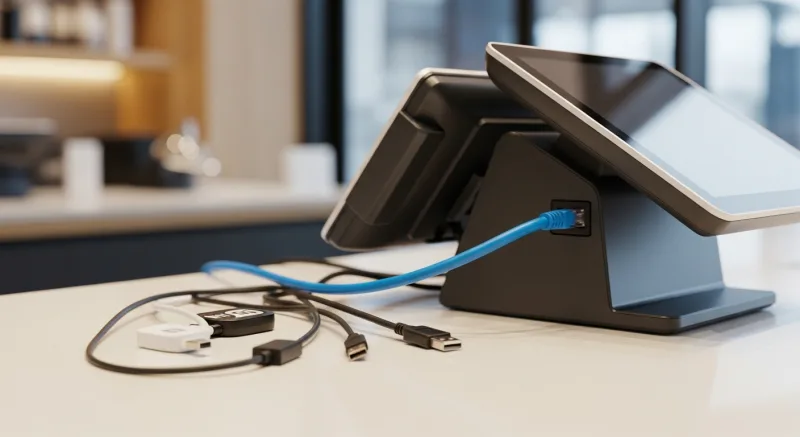
Receipt printers connect to your POS via USB, Ethernet, WiFi, or Bluetooth. This choice matters more than most owners realize.
| Connection | Reliability | Max Distance | Best For |
|---|---|---|---|
| Ethernet | Excellent — hardwired, no interference | 100m (328 ft) | Kitchen, bar, any fixed station |
| USB | Excellent — direct connection | 5m (16 ft) | Front register (printer right next to terminal) |
| WiFi | Variable — interference from microwaves, other devices | 30m (100 ft) theoretical | Temporary setups, food trucks |
| Bluetooth | Good — limited range | 10m (33 ft) | Mobile POS, tableside printing |
Our recommendation: Ethernet for every fixed printer station. Run a cable once and forget about it. WiFi printers drop connections at the worst moments — during peak service when the network is congested with POS terminals, customer devices, and streaming music. A dropped print job in the kitchen means a lost order. A dropped print job at the register means an awkward 30-second wait while the server retries.
KwickOS uses a hybrid local+cloud architecture with 1ms local response time, which means your print jobs route locally even if your internet drops. But the printer itself still needs a reliable connection to the local network. Ethernet provides that. WiFi does not — not consistently enough for 200+ orders per day.
The Auto-Cutter Decision: Full Cut vs Partial Cut
This seems like a small detail. It is not.
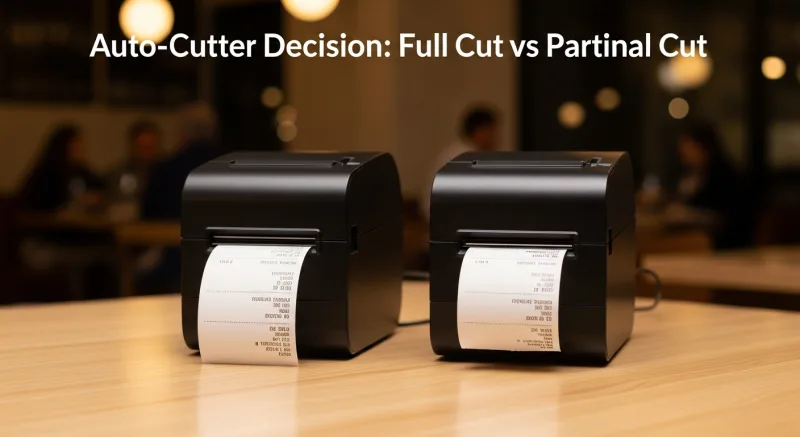
Full cut completely separates each receipt. Use this at the front register where customers take individual receipts.
Partial cut leaves a small tab connecting consecutive tickets. Use this in the kitchen where cooks need tickets to stay in order on the rail. A full-cut kitchen printer drops individual tickets — they fall on the floor, get out of sequence, and disappear into the grease trap. Partial cut keeps them connected so the cook tears them off the rail one at a time.
Crafty Crab Seafood runs 19 locations with 152 terminals. Every kitchen printer across all locations uses partial-cut with tickets routed by station — cold prep, hot line, fry station, expo. When they synced a new seasonal menu across all 19 stores using KwickOS one-click menu sync, the printer routing updated automatically. No manual reconfiguration at each location.
5 Receipt Printer Mistakes That Cost You Money
After working with 5,000+ businesses, we see the same mistakes over and over. Here is what to avoid.
1. Buying Consumer-Grade for Commercial Use
That $89 thermal printer on Amazon? It is designed for a retail shop printing 50 receipts a day. Put it in a restaurant doing 300+ and the print head will burn out in 3-6 months. Commercial-grade printers (Epson, Star Micronics, Bixolon) have print heads rated for 150km+ of printing. The cheap ones are rated for 50km — if they publish the spec at all.
You are not saving $200. You are paying $89 three times instead of $350 once.
2. Using Thermal Paper in the Kitchen
We covered this, but it bears repeating because we see it constantly. Thermal paper turns black when exposed to heat above 155°F. Your kitchen is well above that near any cooking surface. The tickets become unreadable, orders go wrong, and you pay in comps and customer frustration.
3. Skipping the Paper-Near-End Sensor
A paper-near-end sensor alerts your POS system (and staff) when the roll is running low — before it runs out mid-receipt. Without this sensor, you discover you are out of paper when a customer's receipt prints halfway and stops. That is $15 worth of sensor saving you hundreds in operational friction.
4. Ignoring Printer Routing Configuration
A POS system that cannot route specific items to specific printers is not a real restaurant POS. Drink orders should print at the bar. Hot food at the hot line. Cold items at the cold station. If everything prints to one kitchen printer, your cooks waste time sorting tickets and your bartender never sees drink orders until a server walks them over.
KwickOS configures printer routing per menu item, per station. Change a routing rule once and it applies across all terminals — no need to reconfigure each register individually. When T. Jin China Diner expanded to 15 locations with 75 terminals, the printer routing for each store was configured centrally and pushed to all locations remotely.
5. No Backup Printer Plan
Every critical station needs a fallback. Configure your POS to route to a secondary printer if the primary goes offline. KwickOS supports automatic failover routing — if your main kitchen printer drops, orders automatically reroute to a backup printer with no manual intervention and zero lost tickets. This is only possible because KwickOS runs on a hybrid local+cloud architecture that processes print jobs locally, even during internet outages.
Recommended Printers by Use Case
| Station | Type | Top Pick | Price Range |
|---|---|---|---|
| Front register | Thermal | Epson TM-T88VII | $350-$450 |
| Kitchen (hot line) | Impact | Epson TM-U220B | $250-$350 |
| Bar | Thermal (compact) | Star TSP143IV | $300-$400 |
| Expo | Impact or KDS | Epson TM-U220B / KDS screen | $250-$600 |
| Mobile/tableside | Thermal (portable) | Star SM-L200 | $280-$380 |
| Retail checkout | Thermal | Bixolon SRP-350plusV | $250-$350 |
All of these printers are compatible with KwickOS via Ethernet, USB, or Bluetooth. Because KwickOS is processor-agnostic and hardware-open, you are never locked into buying overpriced proprietary printers from your POS vendor. Toast, for example, sells their own branded printers — functionally identical to generic models but marked up significantly. With KwickOS, you buy what you want, from whoever offers the best price.
How to Set Up Multi-Printer Routing the Right Way
If you run any business more complex than a single-register retail shop, you need multiple printers with intelligent routing. Here is the configuration framework used by our highest-volume merchants:
- Map your stations. List every location that needs a printer: front register, bar, hot kitchen, cold kitchen, expo, drive-thru window.
- Assign menu items to stations. Every item in your POS should have a print destination. Entrees to hot kitchen. Salads to cold kitchen. Drinks to bar. Desserts to pastry.
- Set up failover routes. For each primary printer, designate a backup. If the hot kitchen printer fails, tickets should route to a secondary kitchen printer or the expo printer — not disappear.
- Configure cut modes. Full cut for front-of-house, partial cut for kitchen.
- Test during off-hours. Send 20-30 test orders through every station during a slow period. Verify routing, print quality, and cut mode before you rely on it during service.
Rockin' Rolls Sushi Express runs 3 stores with 49 iPad self-ordering stations. Each order prints to the correct sushi prep station, hot kitchen, or drink bar — routed automatically by KwickOS. When they added a new menu category, the routing rules propagated to all 49 stations without touching a single iPad.
Maintenance That Prevents 90% of Printer Failures
Receipt printers are the most abused hardware in any restaurant. A 5-minute monthly maintenance routine prevents the vast majority of failures:
- Weekly: Wipe the thermal print head with an isopropyl alcohol swab. Buildup on the head causes faded or streaky printing — the number one complaint we hear.
- Monthly: Clean the paper path and cutter blade with a cleaning card (available from any printer manufacturer, about $2 each).
- Quarterly: Inspect cables and connections. A loose Ethernet cable is responsible for more "printer not working" calls than actual hardware failure.
- Annually: Replace the cutter blade on thermal printers if you notice rough cuts or paper jams. Most blades last 1.5-2 million cuts, so high-volume locations may need replacement sooner.
For a complete hardware maintenance schedule covering all POS equipment, see our POS hardware maintenance checklist.
The Bottom Line: Match the Printer to the Job
Receipt printer selection is not about finding the "best" printer. It is about matching the right technology to each station in your business. Thermal for front-of-house where speed and silence matter. Impact for the kitchen where heat and moisture would destroy thermal paper. Ethernet everywhere you can run a cable. Auto-cutter on every unit. And always, always have a backup routing plan.
The total hardware investment for a properly configured 3-printer restaurant setup (front register, kitchen, bar) is $900-$1,200. Over three years, including paper and maintenance, you are looking at $2,700-$3,300 — less than $3 per day for hardware that handles every transaction in your business.
Compare that to the cost of one failed printer during a busy service — $150-$300 in direct losses plus the intangible damage to customer experience — and the math is obvious. Buy commercial grade, configure it right, and maintain it monthly. Your printers will outlast your lease.
Need Help Configuring Your Printer Setup?
KwickOS supports all major receipt printers and configures multi-station routing during free onboarding. 1-3 hours to install, and your printers just work.
Calculate Your Hardware Costs