 Rain Lee
Picture this: Saturday night. Your restaurant is packed. Every table is full. The wait list is 45 minutes deep.
Then your POS terminal freezes.
Your servers cannot ring in orders. Your kitchen display goes blank. Customers are waiting with credit cards in hand and nowhere to swipe them. You scramble for a pen and paper. Your staff starts doing mental math on checks. Tips get miscalculated. Customers get frustrated. Some walk out.
One day of POS downtime costs the average restaurant $3,800 in lost revenue. And that does not include the damage to your reputation, the comped meals, or the regulars who decide maybe they will try that new place down the street.
Here's the thing: that nightmare is almost always preventable.
We analyzed hardware failure reports across 5,000+ KwickOS installations, and 78% of unplanned downtime traces back to maintenance that takes less than 15 minutes per month. Dust in the ventilation. A corroded cable connection. A thermal print head that has been screaming for help for weeks while you printed on it anyway.
This guide gives you the exact 15-minute monthly checklist that prevents those failures. No technical expertise required. Just a microfiber cloth, a can of compressed air, and 15 minutes on a slow Tuesday morning.
The Real Cost of POS Downtime (It's Worse Than You Think)
Before we get into the checklist, let us put real numbers on what happens when your POS hardware fails.
Most business owners think of downtime as "we lost some sales." But it gets worse. The true cost includes multiple layers of damage that compound on each other:
| Cost Category | Average Impact |
|---|---|
| Lost revenue during outage | $475/hour (based on $3,800/day avg) |
| Emergency repair/replacement | $200-$800 (rush service fees) |
| Comped meals for frustrated guests | $150-$400 per incident |
| Staff overtime for manual processing | $100-$300 |
| Lost inventory data (if not synced) | $200-$1,000+ in ordering errors |
| Negative reviews from poor experience | $1,200+ in long-term revenue loss per review |
Add it up and a single day of unplanned downtime can cost $4,500 to $6,800 when you include the ripple effects. Over a year, businesses that skip hardware maintenance experience an average of 3.2 unplanned downtime events — that is $14,400 to $21,760 in preventable losses.
And that's not all: emergency repair calls always happen at the worst possible time. Nobody's POS dies at 2 PM on a Wednesday. It dies at 7 PM on a Friday, when the technician charges double and the parts warehouse is closed until Monday.
Now compare that to 15 minutes of monthly maintenance. The math is not even close.
The 15-Minute Monthly POS Maintenance Checklist
Print this checklist. Tape it to the wall in your back office. Assign it to one person on your team. Pick the first Tuesday of every month. It takes 15 minutes and it will save you thousands.
1. Touchscreen Terminal Cleaning (3 minutes)
Your POS touchscreen gets touched hundreds of times per day by fingers covered in grease, sauce, sanitizer, and who knows what else. Over time, this buildup degrades touch sensitivity, causes ghost touches (the screen registers taps you did not make), and obscures the display.
- Power off the terminal before cleaning. You do not want accidental inputs while wiping.
- Use a microfiber cloth — never paper towels, which scratch the surface and leave fibers that attract more dust.
- Dampen the cloth with water or screen-safe cleaner. Never spray directly onto the screen. Liquid can seep into the edges and damage internal components.
- Never use ammonia-based cleaners (Windex, glass cleaner). They strip the oleophobic coating that makes the screen responsive to touch.
- Wipe in one direction, not circles. Circular motions spread grime instead of removing it.
- Check for dead pixels or discoloration while the screen is clean and powered on. These are early signs of display failure.
T. Jin China Diner implemented a daily screen wipe as part of their closing checklist across all 15 locations and 75 terminals. Their touchscreen-related support tickets dropped 64% in the first quarter.
2. Cable and Connection Inspection (3 minutes)
Here's the thing: cables are the number one cause of intermittent POS failures, and they are the hardest to diagnose because the problem comes and goes.
A loose power cable causes random reboots. A corroded Ethernet connection causes the system to drop offline for 30 seconds — just long enough to lose a transaction. A frayed USB cable makes your receipt printer work sometimes and not others.
- Check every cable connection — power, Ethernet, USB, cash drawer trigger cable. Gently push each one in to confirm it is fully seated.
- Look for fraying, kinking, or discoloration on cables. A cable that looks fine can have internal wire breaks from repeated bending.
- Check cable routing. Cables should not run under furniture legs, near heat sources (fryers, ovens), or where staff walk. Trampled cables fail within months.
- Inspect Ethernet connectors for bent pins and corrosion. In kitchen environments with steam and grease, RJ45 connectors corrode faster than you would expect.
- Verify the power supply brick (the box on the power cable). If it is hot to the touch after the system has been idle, it is failing and needs replacement before it takes the terminal with it.
But it gets worse: a failing power supply does not just cause downtime. A voltage spike from a degraded power supply can fry your terminal's motherboard permanently. A $15 power brick replacement prevents a $1,200 terminal replacement.
3. Thermal Printer Maintenance (3 minutes)
Your receipt printer and kitchen ticket printer are mechanical devices with moving parts. They need attention — especially the thermal print head, which is a precision component that degrades with every receipt it prints.
- Open the printer and blow out dust and paper fragments with compressed air. Paper dust accumulates inside and causes jams.
- Clean the print head with a thermal print head cleaning pen or isopropyl alcohol on a cotton swab. Wipe gently in one direction across the print head element.
- Check the platen roller (the rubber roller that feeds paper). If it has flat spots, scoring, or has become hard and shiny, paper feeding will be inconsistent. Replace the roller — they are $8-$15 and take 2 minutes to swap.
- Inspect the auto-cutter blade. Partial cuts, jagged cuts, or failure to cut all mean the blade is dulling. Kitchen printers that cut 200+ tickets per day need blade replacement every 6-12 months.
- Print a test receipt and examine the output. Look for faded areas, streaks, or missing lines — these indicate a dying print head.
Shogun Japanese Hibachi learned this lesson when their kitchen display printer started printing faded tickets that the grill station could not read. A 60-second print head cleaning solved the problem — but the 45 minutes of missed orders during Friday dinner service before they figured it out was not free.
4. Ventilation and Airflow Check (2 minutes)
POS terminals generate heat. Heat is the silent killer of electronics. When ventilation gets blocked, the internal temperature rises, components throttle to prevent damage, and the system slows down or crashes.
- Locate every ventilation opening on your terminal and blow out dust with compressed air. Pay special attention to the intake vents on the bottom and sides.
- Clear the area around the terminal. Menus, napkin holders, condiment caddies — anything within 3 inches of a vent opening is blocking airflow.
- Check for grease film on vents. In kitchen environments, aerosolized grease creates a sticky film on vent openings that traps dust and forms an insulating layer. Clean with a degreaser and a soft cloth.
- Listen for fan noise. A grinding or whining fan is failing and needs replacement. A silent fan in a terminal that used to have fan noise means the fan has already died.
Kitchen-adjacent terminals are particularly vulnerable. Crafty Crab Seafood found that their terminals positioned within 6 feet of the fry line needed vent cleaning every 2 weeks, not monthly. After adjusting their maintenance schedule, those terminals stopped overheating entirely across all 19 locations.
5. Battery Health Check (2 minutes)
If you use handheld POS terminals, mobile payment devices, or UPS (uninterruptible power supply) backup batteries, this step prevents the most frustrating kind of failure — the device that works perfectly in the morning and dies at 6 PM when you need it most.
- Check battery charge level after a full shift. A healthy battery should maintain 20%+ charge after 8 hours of normal use. If it is dying before end of shift, the battery needs replacement.
- Inspect for swelling. Remove the battery if possible and look for bulging. A swollen lithium-ion battery is a fire hazard. Replace immediately.
- Clean battery contacts with a dry cloth. Dirty contacts cause intermittent charging, which leads to unreliable battery levels.
- Check your UPS backup battery if you have one. Press the test button. If the terminal does not stay powered for at least 5 minutes on battery, the UPS battery needs replacing. A dead UPS is worse than no UPS because it gives you false confidence.
- Avoid the 0-100% trap. Lithium-ion batteries last longest when kept between 20% and 80% charge. Do not leave handheld terminals on the charger 24/7 — it degrades battery life by 20-30% over the first year.
6. Firmware and Software Check (2 minutes)
Outdated firmware is a security vulnerability and a stability risk. But updating at the wrong time is worse than not updating at all.
- Check for pending updates on your terminal, payment terminal, and receipt printer. Most devices show update notifications in the settings menu.
- Never update during service hours. Firmware updates can require reboots, and a reboot at 7 PM on a Friday is a disaster. Schedule updates for maintenance windows — 2 AM to 5 AM works for most restaurants.
- Update payment terminals first. Payment processor firmware updates often include security patches for contactless payment and chip card processing. Falling behind on these can cause transaction failures or PCI compliance issues.
- Verify after updating. After any firmware update, run a test transaction (void it afterward). Confirm the receipt printer works, the kitchen display receives orders, and card processing is functional.
KwickOS handles this automatically with hybrid local+cloud architecture — updates download in the background and apply during your configured maintenance window without any manual intervention. The terminal continues operating on local cache even during the update process, so there is zero service interruption. But if you are on a system that requires manual updates, this step is critical.
Quarterly Deep Maintenance (30 Minutes Every 3 Months)
In addition to the monthly 15-minute checklist, schedule a quarterly deep maintenance session. This catches the slower-degrading issues that monthly checks miss.
Network Infrastructure Audit
Your POS network is only as reliable as its weakest component. Quarterly, you should:
- Test network speed at each terminal location. A sudden drop in speed at one station usually means a cable is degrading or a switch port is failing.
- Check router and switch uptime. If your router has been running for 90+ days without a reboot, restart it during off-hours. Memory leaks in consumer-grade networking equipment cause gradual performance degradation.
- Verify your backup internet connection if you have one. Plug it in and confirm it works. Many businesses pay for failover internet that has not actually been tested in months.
- Audit WiFi signal strength at every wireless device location. Seasonal changes (new decorations, rearranged furniture, patio setup) can block wireless signals.
Peripheral Device Inventory
Take 10 minutes to inventory every connected device and confirm each one is functioning properly:
- Cash drawers: Open and close test. Check the auto-open trigger. Verify all bill springs have tension. A weak spring lets bills ride up and jam the drawer.
- Barcode scanners: Scan a test barcode. Check the scan window for scratches. A scratched window reduces read rate and causes cashier frustration.
- Customer-facing displays: Verify the content matches your current menu/pricing. Check touch response if interactive.
- Kitchen display screens: Check for burn-in (ghost images from static elements). Verify brightness is adequate under kitchen lighting.
- Payment terminals: Run a test EMV chip insert and a test contactless tap. Check the card slot for debris — a single grain of salt in a chip reader can cause read failures.
Data Backup Verification
This is the step everyone skips and everyone regrets. Quarterly, verify that your POS data is actually being backed up and that the backup is actually restorable.
- Confirm backup is running. Check the last successful backup date and time. If it is more than 24 hours old, your backup has silently failed.
- Test a restore. If your POS system supports test restores, run one. A backup you have never tested is not a backup — it is a hope.
- Verify backup includes everything — transaction data, menu configuration, employee profiles, loyalty program data, gift card balances.
KwickOS stores all data in a hybrid local+cloud architecture with 1ms local latency, which means your data exists in two places at all times. Even if your local hardware fails completely, every transaction, menu change, and customer record is preserved in the cloud and can be restored to new hardware in minutes — not hours or days.
Environment-Specific Maintenance Tips
Different business environments create different hardware hazards. Here is what to watch for based on your specific operation.
Restaurant Kitchens
Kitchen environments are the harshest on POS hardware. Grease, steam, temperature extremes, and constant vibration from equipment create a hostile environment for electronics.
- Grease buildup: Clean kitchen-facing terminals and KDS screens weekly, not monthly. Aerosolized grease creates an insulating film that traps heat.
- Steam exposure: Position terminals and printers away from steam tables, dishwashers, and pasta cookers. Steam condenses inside electronic enclosures and causes corrosion.
- Temperature swings: Walk-in cooler door openings near POS equipment cause rapid temperature changes that create condensation on circuit boards. Relocate if possible.
Retail Environments
Retail POS systems face different challenges — primarily dust, static electricity, and customer interaction with payment terminals.
- Static electricity: Carpet in retail environments generates static that can damage sensitive electronics. Use anti-static mats under POS stations, especially in dry winter months.
- Customer-facing hardware: Barcode scanners and payment terminals that customers touch need more frequent cleaning and inspection. Customers are not gentle with equipment that is not theirs.
- Dust from merchandise: Clothing retailers, craft stores, and hardware stores generate fine dust that clogs ventilation faster than food service environments.
Beauty and Spa
Chemical exposure is the primary hardware hazard in salon and spa environments.
- Nail salon chemicals: Acetone, acrylic monomers, and polish fumes corrode metal contacts and degrade plastic enclosures. Diva Nail Beauty positions their POS terminals at least 8 feet from service stations and uses protective covers when not in use — their terminal replacement rate dropped to near zero across all 4 locations.
- Hair and dust: Cut hair gets into everything. Weekly vacuuming around POS equipment prevents accumulation in ventilation openings.
- Moisture: Spa environments with high humidity need extra attention to cable connector corrosion and screen condensation.
When to Replace vs. Repair
Not every problem requires replacement. But some repairs are throwing money away on equipment that is past its useful life.
| Component | Expected Lifespan | Replace When |
|---|---|---|
| POS terminal/computer | 4-6 years | Slow performance after clean OS install, or 2+ hardware repairs in 6 months |
| Touchscreen | 5-7 years | Dead zones, persistent ghost touches after calibration, visible cracks |
| Thermal print head | 6-18 months (high volume) | Faded/streaky output after cleaning, missing line segments |
| Receipt printer (full unit) | 3-5 years | Auto-cutter failure after blade replacement, feed motor grinding |
| Cash drawer | 5-10 years | Auto-open failure, bent tracks, lock mechanism broken |
| Payment terminal | 3-5 years | EMV chip reader failures, NFC not detecting, slow transaction processing |
| Network switch | 5-8 years | Random port failures, overheating, failing indicator lights |
| UPS battery | 2-3 years | Cannot hold load for 5+ minutes, warning lights, swelling |
The rule of thumb: if a repair costs more than 40% of the replacement cost and the equipment is past half its expected lifespan, replace it. You are buying the remaining useful life of a component that is already degraded.
Building a Spare Parts Kit
The difference between 15 minutes of downtime and 3 days of downtime is whether you have the replacement part on-site. Here is what every business should keep on hand:
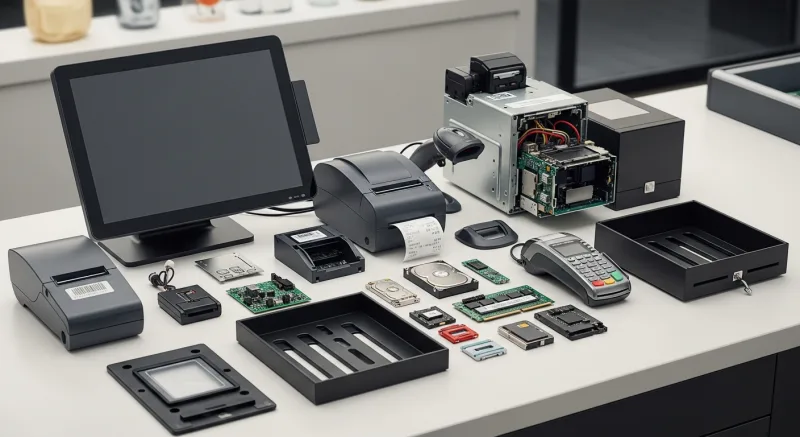
- 1 spare thermal print head for each printer model you use — $25-$60 each
- 2 spare Ethernet cables in the lengths your POS stations need — $5-$15 each
- 1 spare USB cable for each connection type you use — $5-$10 each
- 1 spare power supply/adapter for your terminal model — $15-$40
- Extra receipt paper rolls (at least 2 weeks' supply) — running out on a Saturday night is embarrassing and avoidable
- Cleaning supplies: microfiber cloths, compressed air cans, isopropyl alcohol, thermal print head cleaning pens
Total spare parts kit cost: $100-$200. Total cost of one unplanned downtime event: $3,800+. That is a 19:1 return on investment.
Assigning Maintenance Responsibility
A checklist that nobody owns is a checklist that never gets done. Here is how to make maintenance stick.
- Assign one person per location. Not "everyone" — one specific person with their name on the schedule. At Crafty Crab Seafood, each of the 19 locations has a designated "tech lead" (usually the assistant manager) who owns the monthly checklist.
- Set a recurring calendar event. First Tuesday of each month, 9 AM, before the lunch rush. Make it non-negotiable.
- Use a physical checklist. Digital checklists get lost in email. Print the checklist, post it on the office wall, and have the responsible person check off each item and sign it. Keep completed checklists for 12 months.
- Tie maintenance to performance reviews. If hardware uptime is part of the location manager's evaluation criteria, maintenance gets done. If it is optional, it gets skipped.
Multi-location operators running on KwickOS can monitor hardware health from a single dashboard — terminal online status, last backup time, firmware version, and printer status across every location. When T. Jin China Diner's central IT team sees a terminal at one of their 15 stores reporting elevated temperatures or backup failures, they address it proactively instead of waiting for a crash.
The Bottom Line
POS hardware maintenance is not exciting. It is not the reason you got into business. But it is the difference between a Saturday night that runs smoothly and a Saturday night that costs you $3,800 and a handful of one-star reviews.
15 minutes per month. $100 in spare parts. $14,000+ in prevented losses per year.
Your POS system handles every transaction your business processes. It tracks your inventory, manages your staff, runs your loyalty program, and prints every receipt. Treat it like the mission-critical infrastructure it is — not an appliance you plug in and forget until it breaks.
Because when it breaks, it does not care that you are at 90% capacity on a Saturday night. It breaks anyway. And the only thing standing between you and that scenario is 15 minutes with a microfiber cloth and a can of compressed air.
Built to Stay Running
KwickOS hybrid local+cloud architecture means your POS works even when the internet does not. Auto-updates. Remote monitoring. Hardware health alerts. See why 5,000+ businesses trust KwickOS to keep running.
Get a Demo